Can You Block Ads on Amazon Prime Video?

If you are wondering whether there is a working adblock for Amazon Prime Video right now, the short answer is that traditional adblockers struggle because Amazon stitches ads directly into the video stream. Following the 2024 update that introduced mandatory ads for default Prime Video tiers, finding a reliable workaround has become difficult for many viewers.
Because Amazon uses a technology called Server-Side Ad Insertion (SSAI), the platform delivers the advertisement from the exact same server that delivers your movie or TV show. This renders standard adblocking methods highly unstable. In this article, we will explore the official ad-free upgrade, diagnose exactly why popular network blockers and browser extensions fail, and introduce a local-file download alternative that guarantees uninterrupted playback on your Smart TV.
The Official Route: Prime Video’s Ad-Free Upgrade
Before looking into third-party workarounds, it helps to understand the baseline official option. Amazon officially charges an extra $2.99/month to remove ads from its default Prime Video tier. For users who rely entirely on the official Smart TV or mobile apps, paying this recurring fee is the only platform-approved way to skip the interruptions.
However, it is important to note that even if you pay the $2.99 monthly fee, your viewing experience may not be 100% ad-free. Amazon explicitly notes that live events, sports broadcasts, and specific third-party channels available through Prime Video may still contain advertisements due to licensing agreements. This ongoing cost—and the fact that it doesn’t apply to all content—is the primary reason many users actively search for third-party alternatives.
Why Pi-hole and Network Adblockers Fail on Prime
Many tech-savvy users assume that blocking ads at the router level is the ultimate fix. But if you are searching for how to block Pi-hole Amazon Prime ads, you will quickly find that network-level blockers are completely ineffective here.
The technical reason is Server-Side Ad Insertion (SSAI). In the past, websites loaded the video from one server and the ad from a completely different server. A DNS blocker like Pi-hole simply blocked the known ad server, leaving the video intact. Amazon, however, stitches the ad directly into the video stream before it ever reaches your network. Because the movie and the ad are streaming from the exact same source, Pi-hole cannot block the ad without blocking the entire video stream. You either get the video with the ads, or you get a broken connection.
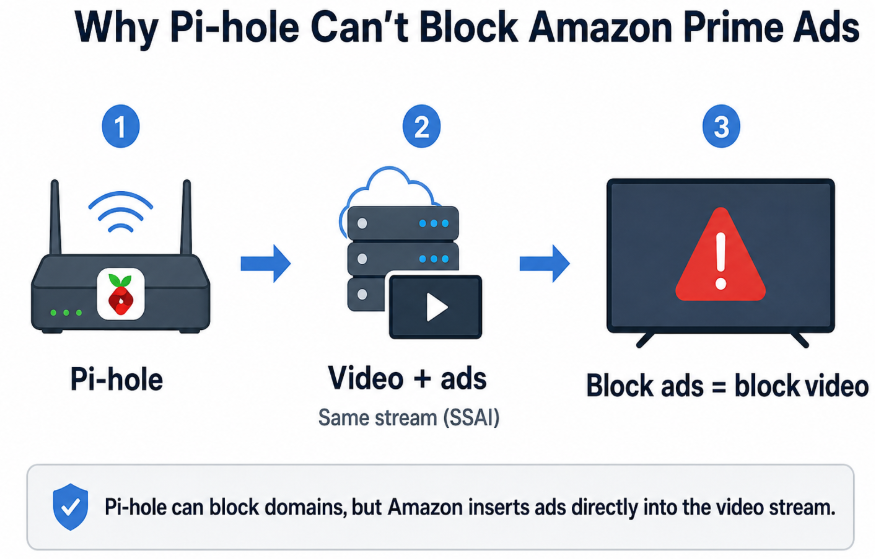
Pi-hole and Network Adblockers Fail on Prime
The Problem with Browser Extensions (uBlock Origin)
When network blockers fail, users typically turn to browser extensions like uBlock Origin. While these extensions can sometimes skip Prime Video ads, doing so requires playing a constant game of “whack-a-mole” as Amazon updates its anti-adblock scripts.
Relying on browser extensions creates significant instability, often ruining the viewing experience halfway through a movie. Here is a breakdown of the typical experience:
Pros of Browser Extensions
- Free to install and use on desktop browsers.
- Can sometimes successfully skip the ad break if custom filter lists are perfectly up to date.
Cons of Browser Extensions
- Broken Subtitles: The most common pain point. Blocking the ad script frequently causes subtitles and closed captions to desync or disappear entirely.
- Video Player Crashes: Amazon’s player may throw an error code or infinitely buffer when it detects the ad script failing to load.
- Constant Maintenance: You must frequently purge caches and update custom filter lists just to watch an episode.
- Browser-Only Limitation: Extensions do absolutely nothing for the main Prime Video app on your phone or TV.
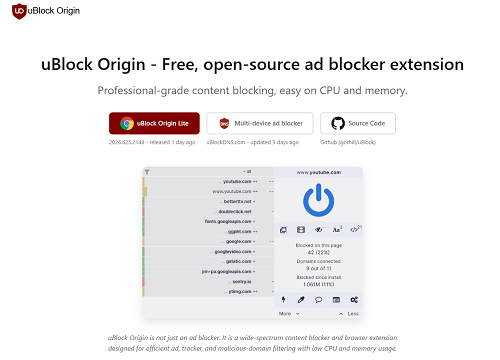
uBlock Origin
The Smart TV Dilemma: Roku, Apple TV, and Fire Stick
Even if you manage to configure a browser extension perfectly on your laptop, it doesn’t solve the biggest hurdle: the living room. The vast majority of streaming happens on Smart TVs, not computer browsers.
Native Smart TV platforms—such as Roku, Apple TV, Fire TV, and Samsung’s Tizen—are completely closed ecosystems. You cannot install an adblock extension on a Roku or a Fire Stick. Because these apps communicate directly with Amazon’s servers using SSAI, you are effectively trapped with ads on your big screen unless you pay the official fee.
If browser extensions break your subtitles on a PC, and adblockers don’t even exist on your TV, the solution isn’t to look for a better adblocker. The solution is to change your viewing workflow entirely by taking the video offline.
The Stable Alternative: The Keeprix “Stream to File” Workflow
For users tired of broken subtitles, endless extension updates, and Smart TV limitations, Keeprix Video Downloader offers a ‘File to Freedom’ alternative workflow. Instead of trying to block ads during a live web stream, Keeprix is a desktop video downloader for Windows and Mac that allows you to turn accessible Prime Video content into local MP4 or MKV files.
By downloading the file directly (up to 1080p depending on source quality and your account access), you bypass the live stream entirely. This guarantees uninterrupted offline playback. More importantly, Keeprix preserves available subtitles and audio tracks, completely solving the browser extension breakage problem.
Here is how the workflow works:
Keeprix Video Downloader
Download streaming videos from hot platforms without limites. Enjoy seamless offline watching on Windows and Mac computers.
Step 1: Open the Keeprix: Open Keeprix on your Windows or Mac.Choose Amazon Prime.You can also simply copy the link of the video you want to download into the search box.
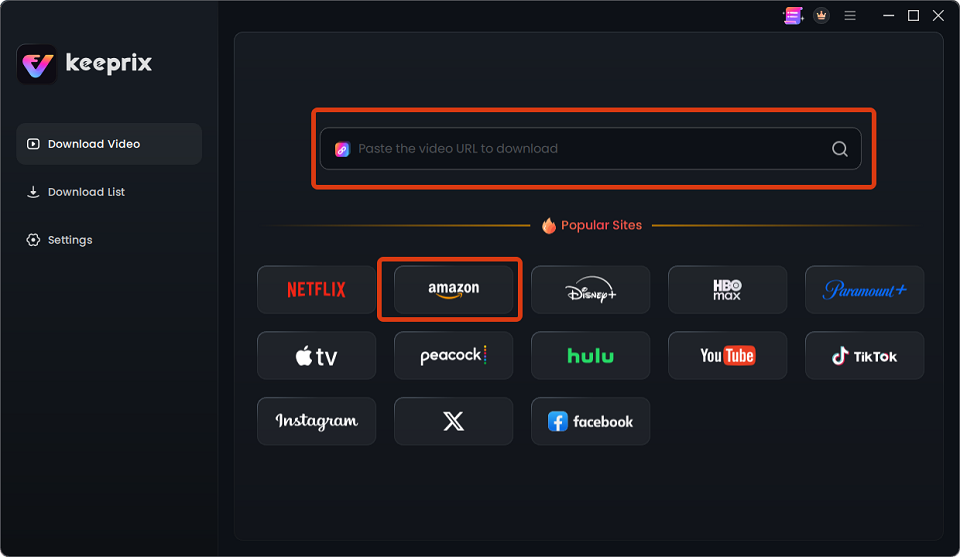
Choose Amazon Prime
Step 2: Access Your Account: Use the built-in browser to log into your Prime Video account.
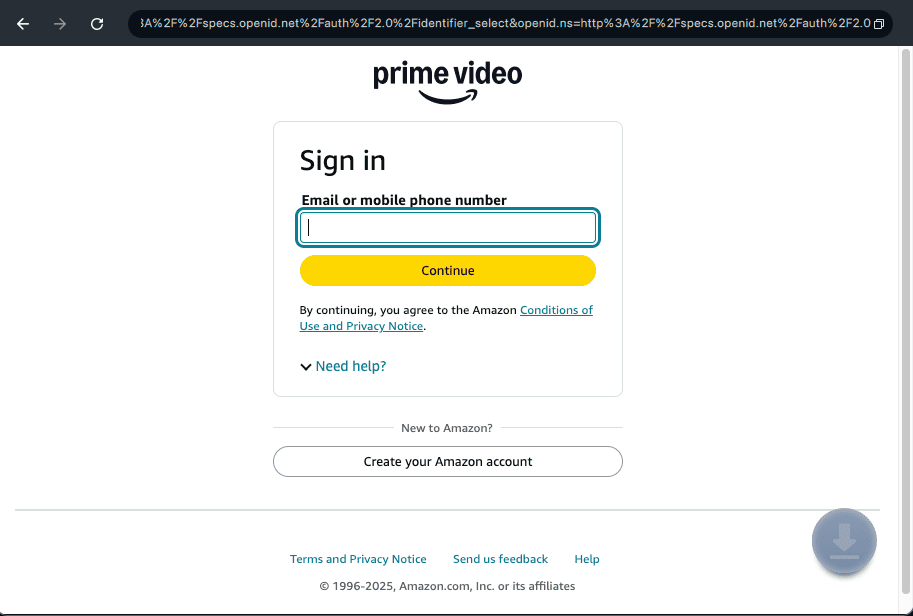
Log Into Prime Video Account
Step 3: Select the Video: Find the movie or TV show you have access to and click the download prompt.
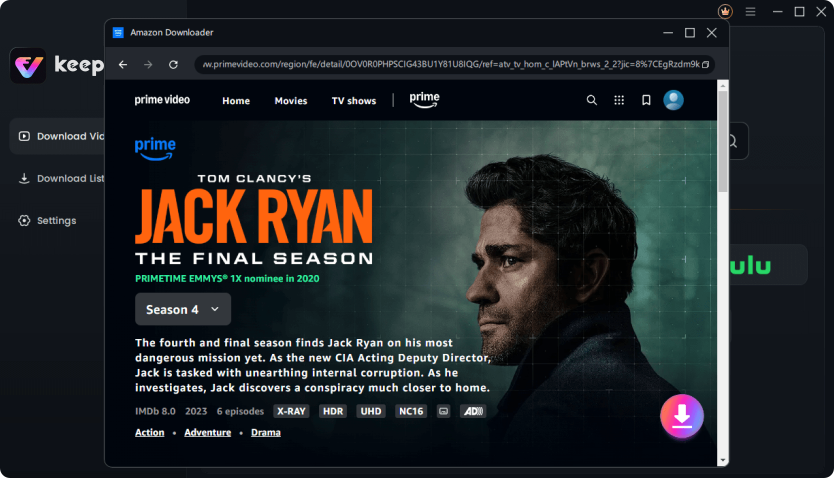
Choose movie on Amazon Prime
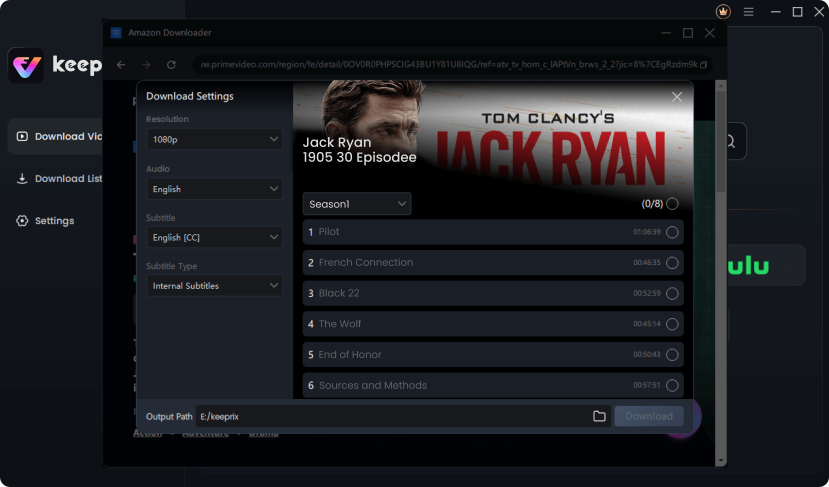
Step 4: Choose Options: Select MP4 or MKV, and choose your preferred language, audio track, and subtitles.
Choose options
Step 5: Batch Download: Add entire TV seasons to the queue to prep your watchlist without having to click past ads.
Step 6: Save Locally: Export the final, flexible files to your computer for permanent personal offline viewing.
Try Keeprix today to turn your accessible streams into ad-free local files and start building your uninterrupted offline watchlist.
How to Watch Your Downloaded MP4 Files on Any Smart TV
Once you have used Keeprix to save your accessible Prime Video content as standard MP4 or MKV files, you have completely solved the Smart TV ecosystem problem. Because you now have a local file rather than an app-based stream, you control the playback experience.
Here is how to get your ad-free downloads onto your big screen:
- Download the File: Complete the Keeprix download workflow on your Windows or Mac computer.
- Transfer to a USB Drive (Method 1): Copy the MP4/MKV files to a formatted USB flash drive or external hard drive, then plug it directly into your Smart TV’s USB port. Use the TV’s native media player to watch.
- Set Up a Local Media Server (Method 2): Install a free media server application like Plex or Jellyfin on your computer. Point the server to your Keeprix download folder.
- Play Natively on Your TV: Open the Plex app (or your TV’s USB media player) on your Roku, Apple TV, or Fire Stick.
By streaming the file locally over your own network or playing it from a USB, you guarantee zero ad interruptions and full subtitle support on the biggest screen in your house.
Frequently Asked Questions
1.Is there any way to block ads on Prime Video for free?
Technically yes, using browser extensions on a desktop PC. However, these require constant filter updates and frequently break the video player or cause subtitles to disappear entirely.
2.Does uBlock Origin work for Amazon Prime?
It can work intermittently, but you will play a constant game of whack-a-mole. Because Amazon actively updates its anti-adblock scripts, uBlock Origin often triggers playback errors or breaks the user interface unless custom filters are regularly maintained.
3.How to watch Prime Video without ads on a Smart TV?
Because you cannot install adblockers on Roku, Fire TV, or Apple TV, you only have two options: pay the official $2.99/month ad-free upgrade fee, or play downloaded local files (MP4/MKV) via a USB drive or local media server.
4.Why is Pi-hole not blocking Prime Video ads?
Amazon uses Server-Side Ad Insertion (SSAI). This means the ads are stitched into the video stream from the same server hosting the movie. If Pi-hole blocks the server, it blocks the entire video.
5.Do I have to pay $2.99 to remove Prime Video ads?
Yes, if you want the official, seamless, in-app experience across all your devices, paying the $2.99/month fee is mandatory.
6.Can I download Prime Video movies to watch offline without ads?
The official mobile app allows limited offline downloads, but they remain locked inside the app. For a more flexible solution, you can learn how to download Amazon Prime videos using a desktop tool like Keeprix to save accessible videos as local MP4 files, ensuring uninterrupted offline playback on any device.
Final Thoughts: Moving from Ad-Supported Streams to Ad-Free Files
Dealing with mandatory ads on your favorite streaming platform can be incredibly frustrating. If you are trying to find an adblock for Amazon Prime, you ultimately have three choices: pay the official $2.99/month fee, play endless whack-a-mole with unstable browser extensions that ruin your subtitles, or switch to a local-file workflow.
For those who want a permanent, stable viewing experience without relying on closed Smart TV ecosystems, downloading local MP4 or MKV files is the best path forward. By using Keeprix to save the videos you can already access, you can build a personal offline library, preserve your preferred audio and subtitles, and enjoy guaranteed uninterrupted playback on any screen you choose. Stop fighting with broken adblockers—get your offline watchlist ready and take control of your viewing experience today.

Keeprix Video Downloader
- Download Amazon Prime videos on Windows & Mac.
- Save streaming videos as local MP4/MKV files.
- Batch download streaming videos and TV series.
- Watch videos offline, no ads, no interruption.