How to Download Paramount Plus Shows for Offline Viewing

Yes, you can download Paramount Plus shows and movies for offline viewing, but official downloads require the Paramount+ with SHOWTIME plan (or a legacy Premium plan). Essential plan users cannot download content.
Additionally, official downloads are restricted to iOS and Android mobile devices. There is no official Windows or Mac download feature for Paramount+.
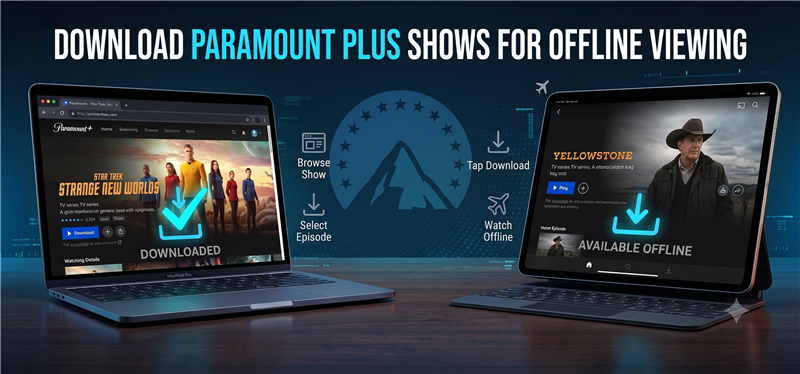
1. Download Paramount Plus Shows on iOS & Android
If you meet the plan and device requirements, saving shows to your phone or tablet is a straightforward process.
- Open the Paramount+ app on your iOS or Android device.
- Navigate to the show or movie you want to watch offline.
- Look for the download icon next to the description and tap it to start saving.
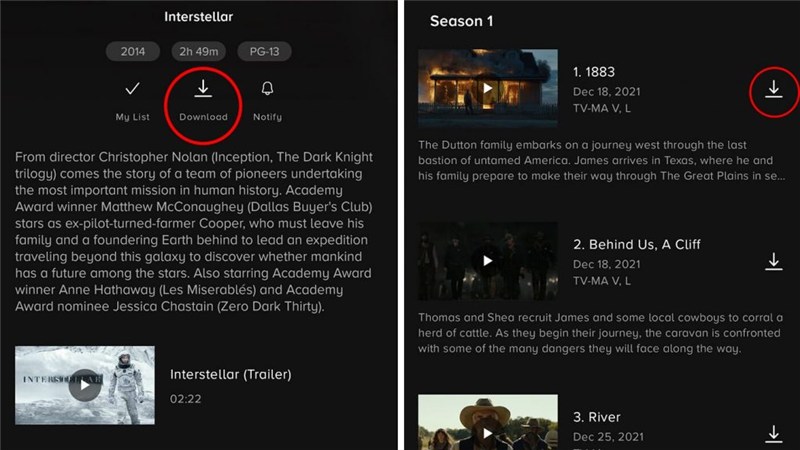
While this official method is convenient for quick mobile viewing, it comes with strict expiration rules. Downloads expire 30 days after saving, or just 48 hours after playback begins. Furthermore, these downloaded files remain locked inside the Paramount+ app and cannot be transferred or managed outside of it.
The Limitation: Why You Can’t Download on a Laptop
Many users waste time searching for a non-existent Paramount+ desktop app. Because official downloads are mobile-only, there is no authorized way to save shows directly to your PC or Mac using the platform itself. This becomes a major frustration for travelers or commuters who prefer watching on a laptop screen, or who find the strict 48-hour playback expiration too limiting for long trips.
Here is how the official mobile app compares to a desktop file-based workflow:
| Feature | Official Paramount+ App | Desktop File-Based Workflow (e.g., Keeprix) |
|---|---|---|
| Supported Devices | iOS and Android mobile devices only | Windows and Mac computers |
| Output Format | App-locked, cannot be transferred | Flexible MP4 or MKV files |
| Expiration Rules | Expires 48 hours after playback begins | Flexible offline files that do not suddenly expire |
| Best For | Quick viewing on a smartphone | Long travel, laptop viewing, and building a personal library |
2. How to Download Paramount Plus Shows on Laptop (Save as MP4)
If you want to watch offline on a laptop or avoid the strict 48-hour viewing expiration, Keeprix Video Downloader offers a practical solution for Windows and Mac users. Keeprix is a desktop alternative to official mobile app downloads that helps you turn videos you can already access into flexible offline files.
Instead of leaving your watchlist locked inside a mobile app, Keeprix helps you save accessible Paramount+ shows as standard MP4 or MKV files in up to 1080p resolution (depending on the source quality and your account access). This “prepare before you need it” approach is ideal for travelers who need a reliable offline media library for long flights or road trips. By shifting from app-only viewing to a file-based workflow, you gain the freedom to manage your saved videos for personal offline viewing without worrying about sudden expirations.
Step-by-Step: Saving MP4 Videos with Keeprix
Using the Keeprix Paramount Plus Downloader to build your personal offline media library is simple. Here is how to turn your streaming access into usable local files:
Keeprix Video Downloader
Download streaming videos from Paramount+ as MP4/MKV. Enjoy seamless offline watching on Windows and Mac.
Step 1: Download and install the software on your Windows or Mac computer. Choose Paramount+ platform.
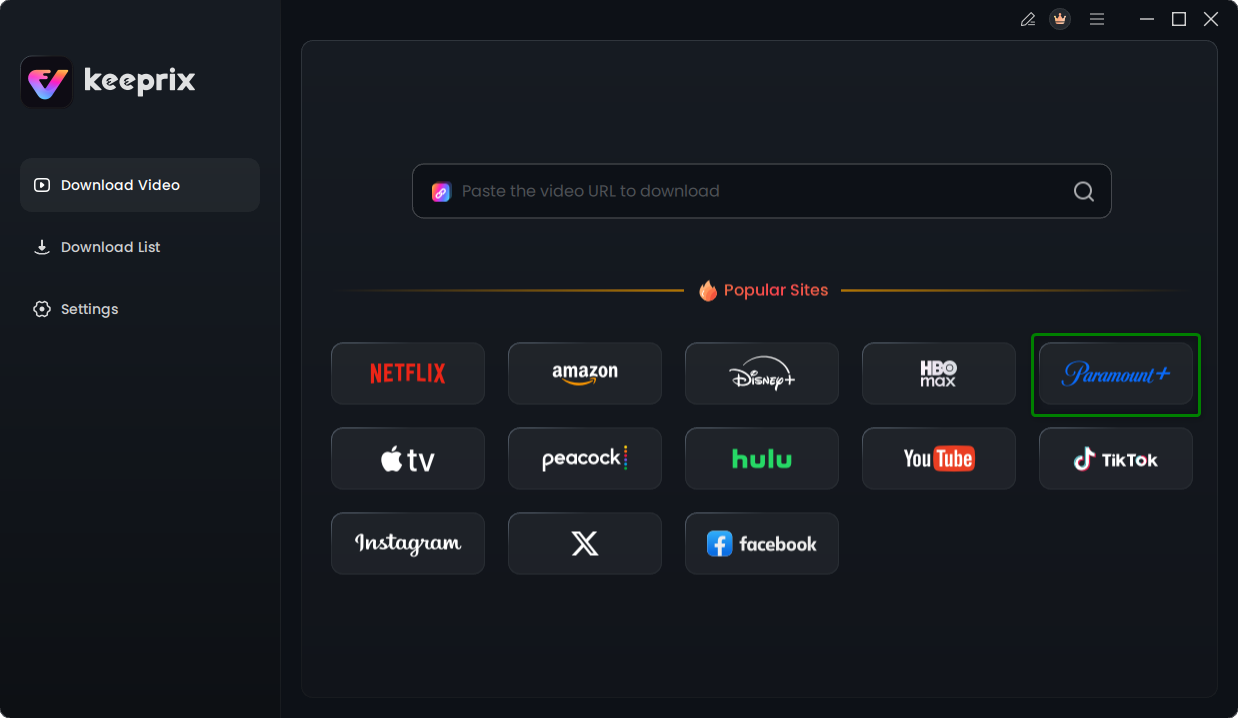
Step 2: Open the software and use the built-in browser to navigate to Paramount+. Log into your supported account.
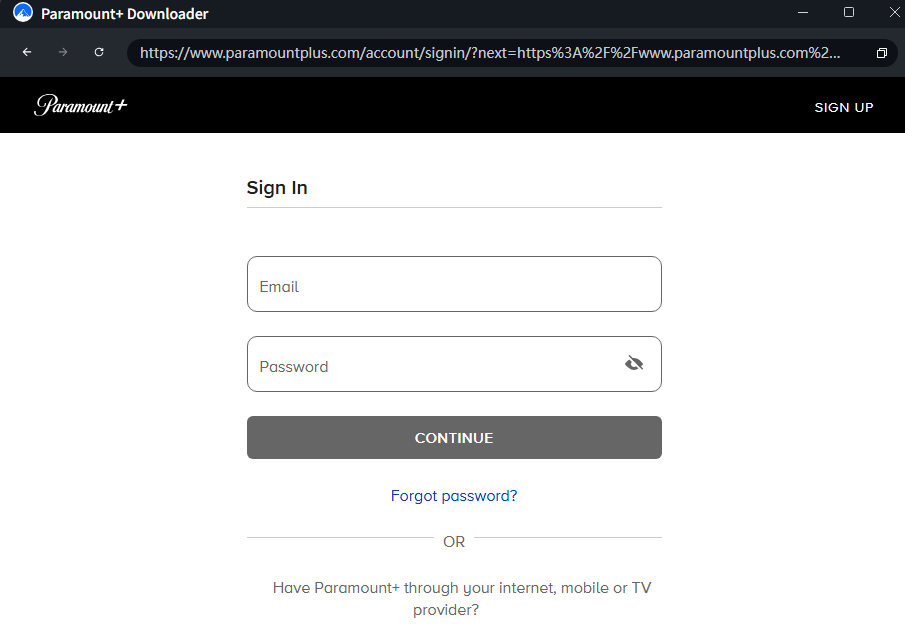
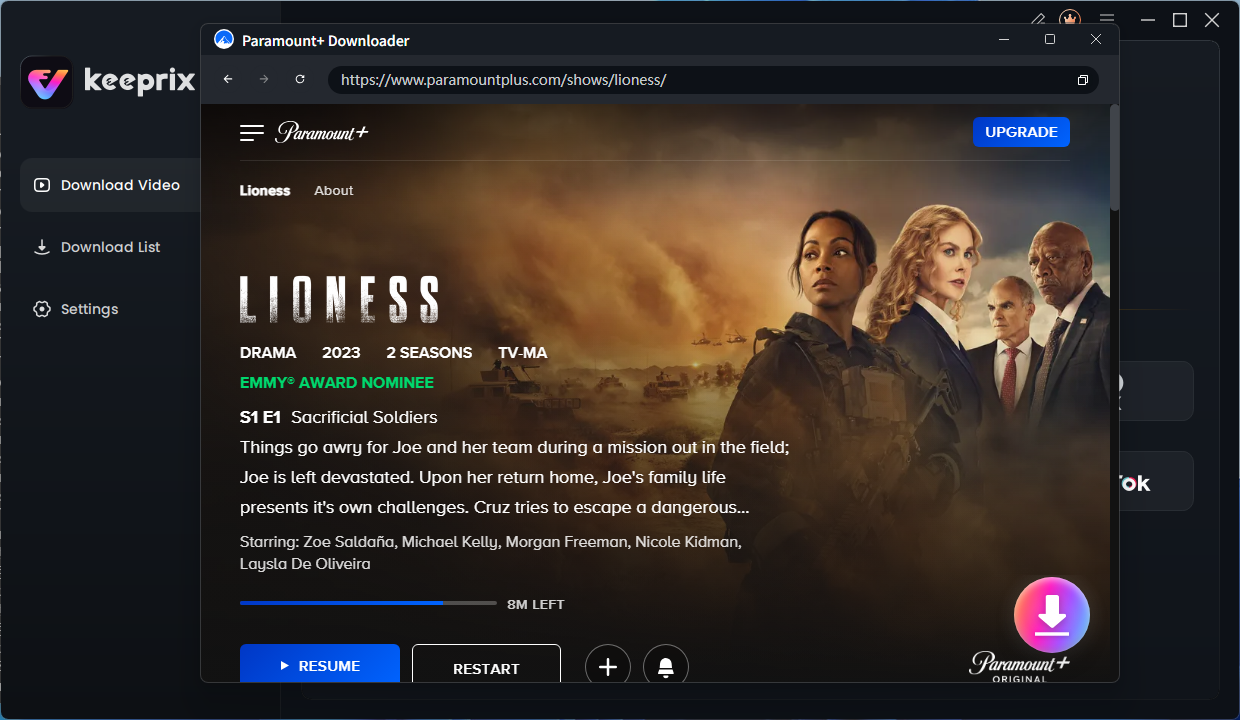
Step 3: Select the show or movie you want to save. Click the Download button.
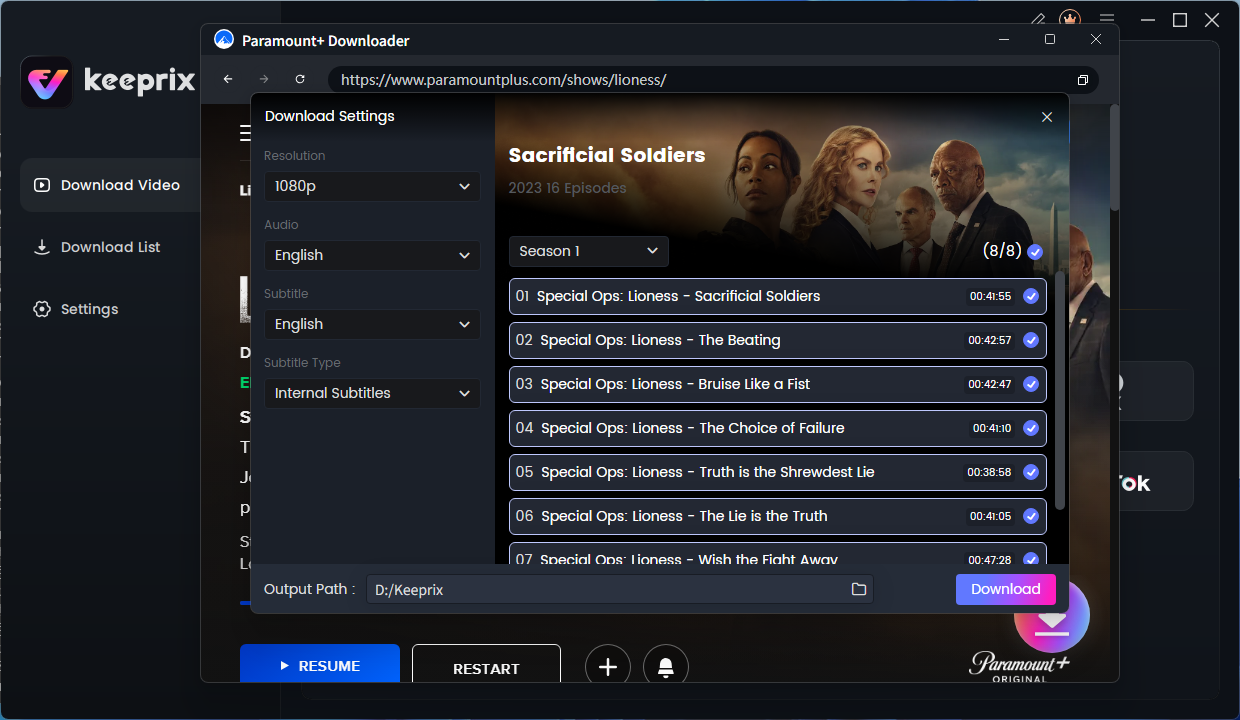
Step 4: Choose your preferred output format (MP4 or MKV), resolution (up to 4K), and any available subtitles or audio tracks you want to keep. You can also use the batch download feature to queue up multiple episodes for an entire season at once.
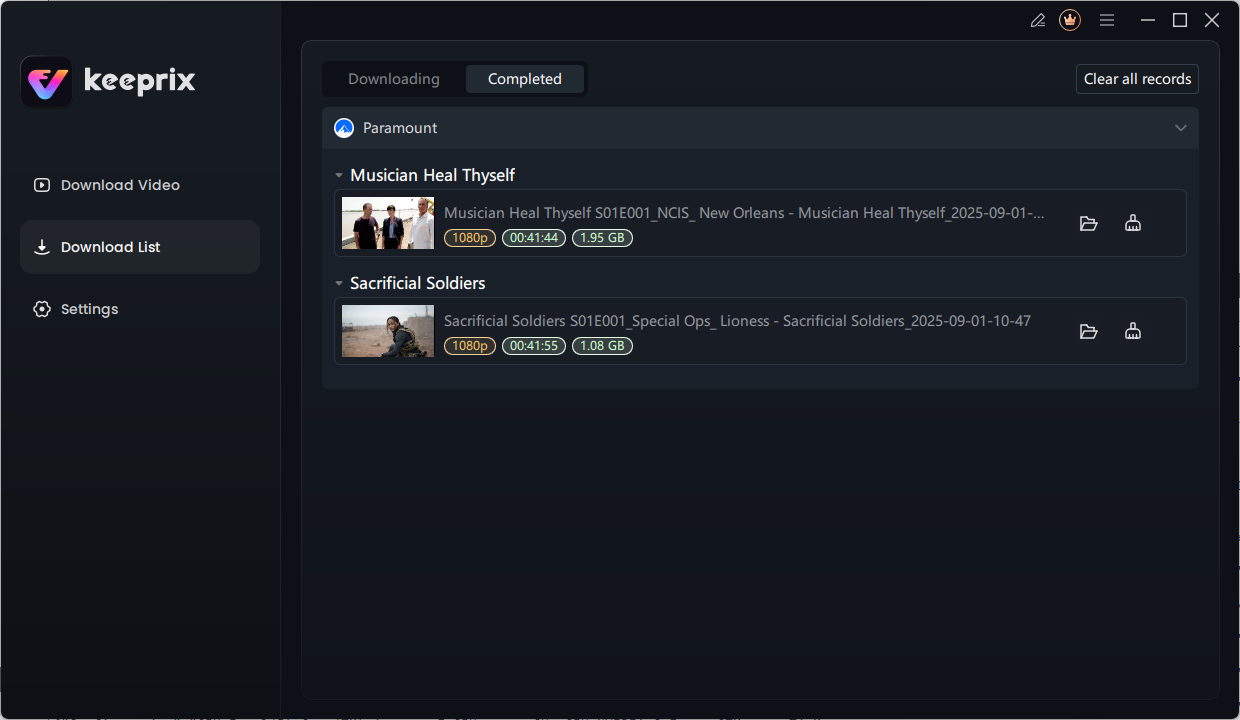
Step 5: Once download is completed you’ll see videos in your local folder.
3. Troubleshooting: Why Can’t I Download on Paramount Plus?
If you are trying to use the official app but cannot find the download icon or struggle to download protected videos, run through this quick diagnostic checklist:
- Check Your Subscription Tier: Confirm you are subscribed to the Paramount+ with SHOWTIME plan (or a legacy Premium plan). The Essential plan does not include the download feature.
- Check Your Device: Ensure you are using the official iOS or Android mobile app. If you are logging in through a web browser on a PC, Mac, or unsupported device, the download button will not appear.
- Check App Version & Storage: Make sure your app is updated to the latest version and verify that your mobile device has enough local storage space to save new video files.
4. Frequently Asked Questions
Q1: Do Paramount Plus downloads expire?
Yes. Official downloads expire 30 days after you save them if unopened, or just 48 hours after you begin playing the video.
Q2: What subscription plan do I need to download on Paramount Plus?
You must have the Paramount+ with SHOWTIME plan, or an older legacy Premium plan, to download shows officially.
Q3: Can I save Paramount Plus videos as MP4 files?
You cannot do this officially, as the app uses a protected format. However, you can use desktop tools like Keeprix to save accessible videos as flexible MP4 files for personal offline viewing.
Q4: How can I keep Paramount Plus downloads offline for longer trips?
To avoid the strict 48-hour expiration rule during long travel, you can use Keeprix to save your watchlist as local MP4 backups on your laptop.
Q5: Is there a download limit?
Officially, Paramount+ allows you to have up to 25 downloaded videos at one time across all your registered devices.
Summary
If you have the Paramount+ with SHOWTIME plan and just need to watch an episode on your phone during a short commute, the official mobile app is a convenient option. However, if you need to download movies for a flight, want to watch on a laptop screen, or need to avoid the strict 48-hour expiration window, local MP4 files offer significantly more freedom.
By moving from app-only viewing to a file-based workflow, you can ensure your entertainment is always available when you actually need it. Prepare your watchlist before you leave and download the free Keeprix trial today to start building your personal offline library for your next trip.

Keeprix Video Downloader
- Download Paramount+ videos on Windows & Mac.
- Save streaming videos as local MP4/MKV files.
- Batch download streaming videos and TV series.
- Watch videos offline, no ads, no interruption.