How to Get Apple TV+ on Amazon Fire Tablet & Stick

Are you trying to watch Apple TV+ on your Amazon Fire Tablet or Fire Stick? You ain’t the only one if you cannot find the app. The reason is that Apple TV is not pre-installed on these devices. If you’ve already signed up for Apple TV+, it’s pretty annoying when streaming isn’t just a tap away.
Apple TV on Amazon Fire is relatively easy to get. This quick guide will explore how you can get Apple TV+ up and running on your Fire devices. Read till the end so you don’t miss out on your favorite shows and movies.
You may also like: How to get Apple TV+ on PC
How to Get Apple TV+ on Amazon Fire Tablet?
You looked for the Apple TV+ app on your Fire Tablet and came up empty. Here’s the thing. Fire tablets don’t support the Apple TV+ app. But don’t give up, as you can still watch Apple TV on Amazon Fire device using these steps:
Step 1. Open the Chrome or Amazon Silk web browser on your tablet and visit the Apple TV website. Here, tap the Sign In button and enter your Apple account details.
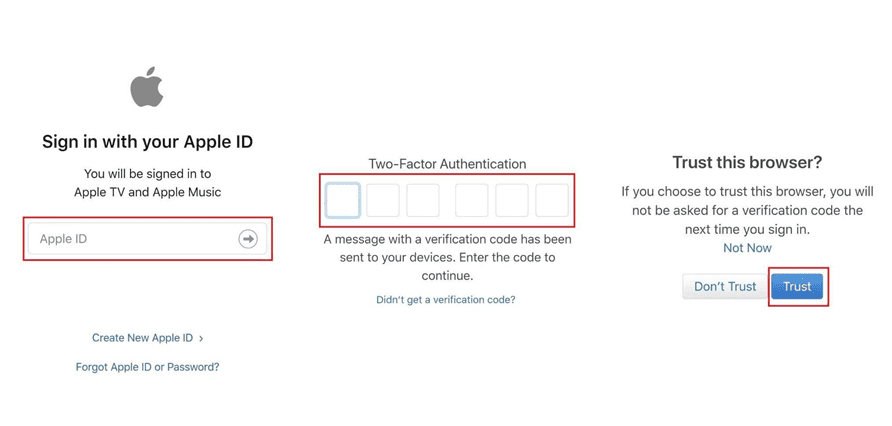
Log in to Your Apple Account
Step 2. Next, provide the credentials and hit the arrow icon to wait for the 2FA code. After entering that code, choose to Trust the device to proceed.
Step 3. Lastly, browse the available selection and select the desired one to stream.
Related article: How to fix Apple TV not working
How to Install Apple TV+ on Amazon Fire Stick?
Want to relax and watch your favorite Apple TV+ shows on a television? All you require is to link the Fire Stick to your TV and have a stable internet. Let’s walk you through how to install the Apple TV on Amazon Fire Stick and get streaming in minutes:
Step 1. Plug in your Fire TV Stick and ensure it’s connected to the internet. Then, navigate to the Search icon and type “Apple TV” to look for the app.
Step 2. From the search results, choose the Apple TV app to proceed.
Step 3. Now, hit the Get button and wait for the app to download.
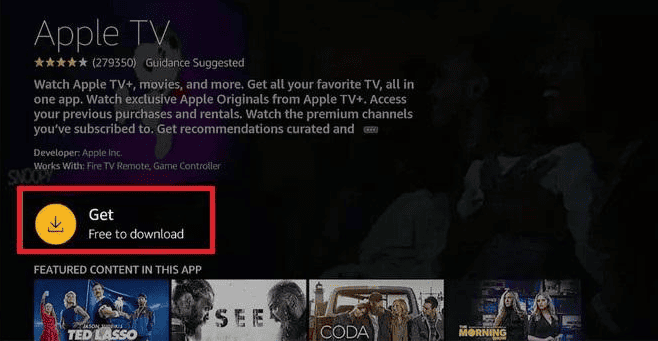
Install Apple TV on Amazon Fire
Step 4. Once installed, press Start Watching and log in to your Apple account to stream your favorite shows
Can You Download Apple TV+ Videos on Amazon Fire?
If you were looking to download Apple TV+ videos on your Amazon Fire devices, we have the bad news. You can’t do it. The Apple TV on Amazon Fire TV or Tablets won’t let you download shows or movies to watch offline.
Essentially, you can only save Apple TV+ content for later viewing if you’re using an iOS or macOS device, or a PC. Even then, content that’s included with your app subscription can only be downloaded. Plus, these downloads are device-specific and cannot be shared.
How to Download Apple TV+ Videos with a Free Trial?
Despite Apple TV+ not allowing you to download shows on Amazon Fire devices, there is no need to lose hope. You can utilize dedicated video downloaders to get your desired episodes and movies. Among them, Keeprix Downloader stands out as a reliable option to let you download Apple TV shows in 4K resolution.
You don’t even need to buy a full subscription, as you can get any TV show or movie for offline viewing if you have the free trial. Keeprix helps you remove all types of download and DRM restrictions.
Advantages of Keeprix Video Downloader:
- Multi-platform support (Netflix, Amazon Prime, Disney+, Apple TV, etc.)
- Save files in universal formats like MP4 and MKV for playback anywhere.
- Batch download queue and ten times faster download speeds.
- Subtitles and audio tracks in more than 13 languages.
- No location restrictions, no title expiration, no ads.
Detailed Guide on How to Download Apple TV+ Content via Keeprix Downloader.
Step 1. Download and install Keeprix Downloader from its official website. Once installed, open the program and select Apple TV from the list of available platforms.
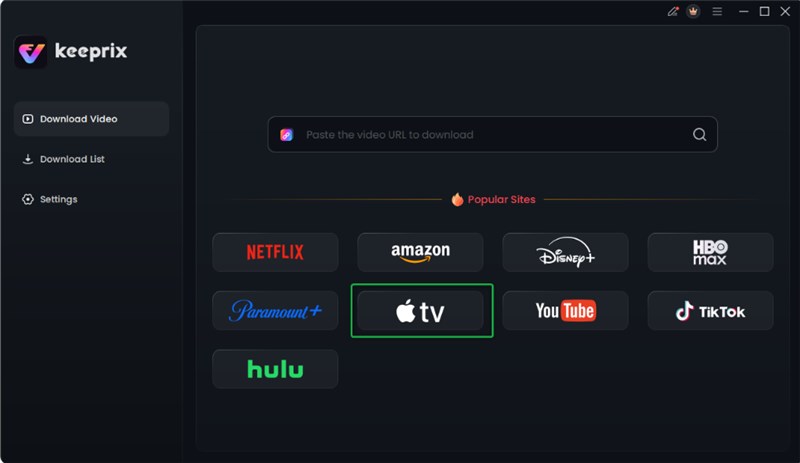
Choose Apple TV Platform
Step 2. Then, click Sign In and enter your Apple TV account credentials to log in.

Log in Apple TV Account
Step 3. Here, browse to the video you want to get for offline viewing and click the Download icon.
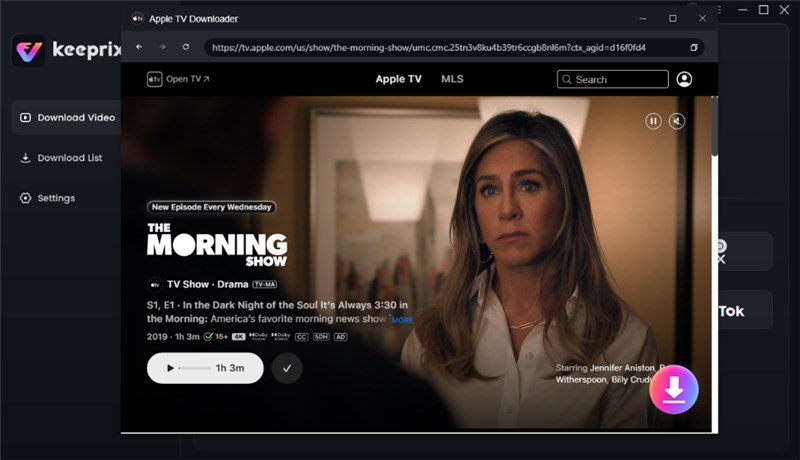
Click Download Button
Step 4. Within the Download Settings window, define your preferred settings for Resolution, Audio, and Subtitle options.
Step 5. Lastly, opt for the Download option and wait for Keeprix Downloader to finish the process.

Apple TV Video Download Completed
FAQs About Apple TV on Amazon Fire
1. Does Amazon Fire have an Apple TV app?
Yes. Most Amazon Fire TV and Fire Stick models support the official Apple TV app. You can download it directly from the Amazon Appstore by searching for “Apple TV.” Once installed, sign in with your Apple ID to stream Apple TV+ shows and movies.
2. Is Amazon Fire compatible with Apple?
Yeah, it does. Fire TV works with Apple services like Apple TV+, and if you’ve got a newer Fire TV or a smart TV hooked up, even AirPlay works. You won’t get that deep Apple ecosystem feel, but streaming from your Apple TV account is easy. Just log in and start watching.
3. Why won’t my Apple TV work on my Firestick?
The following are the reasons why that can be the case:
- Outdated Firmware: Your Fire Stick’s software or the Apple TV app isn’t updated. It may cause playback errors.
- Unsupported Devices: Older Fire Stick models before 2016 don’t fully support the Apple TV app.
- Account Errors: Problems with the Apple ID or temporary authentication issues can prevent access.
- Internet or Server Issues: A weak network or Apple server outage can interrupt streaming.
Conclusion
To summarize, setting up Apple TV on Amazon Fire device is actually quite simple. The Apple TV app works well on Fire Stick and Fire TV. If you have a Fire Tablet, you can still watch Apple TV+, just open it in the browser.
Even though downloads aren’t supported on Fire devices, you can still enjoy all your favorite Apple TV+ shows offline through Keeprix Downloader. Start streaming today and make the most of your Apple TV+ on Amazon Fire experience.