How to Screen Record Apple TV+ Without Black Screen

| Quick Overview |
| This article explains how to screen record Apple TV+ on iPhone, Windows, and Mac without encountering black screen issues. It discusses Apple’s DRM protection and its impact on recording. Additionally, it highlights alternative ways to capture or download Apple TV+ content using Keeprix Video Downloader for offline viewing, ensuring clear playback. |
Recording Apple TV+ content can be surprisingly difficult because most attempts result in a black screen. A Reddit post even described how the screen goes black, forcing a complete restart. These mixed experiences reveal how Apple’s strict DRM protection prevents Apple TV screen recording. Fortunately, this guide explores safe solutions for how to screen record Apple TV on iPhone, Windows, or Mac.

How to Screen Record Apple TV+
Can You Record Shows on Apple TV+?
Apple TV+ shows cannot be recorded directly. Apple enforces strict DRM protection, which blocks all forms of in-app recording, downloading, or DVR capturing. The Apple TV app doesn’t include any native recording features, and external DVR services aren’t supported either because the platform is built exclusively for streaming.
However, some workarounds exist for those learning how to screen record Apple TV content. You can use built-in iPhone or iPad recorders or external software to capture videos. These methods simply record the visible display. They may work in certain scenarios, but black-screen issues are still common.
How to Screen Record Apple TV+ on iPhone
You can record Apple TV+ on an iPhone with the built-in screen recorder. This feature lets you capture what’s playing on your screen without installing extra apps. It can help This is a practical way to save short clips or moments for later viewing. Still, because of Apple’s DRM rules, some videos might appear black while recording. Review the given steps to find out how to screen record Apple TV content:
Step 1. Swipe down the upper right corner of the screen to tap the “Screen Recorder” icon in the “Control Center.”
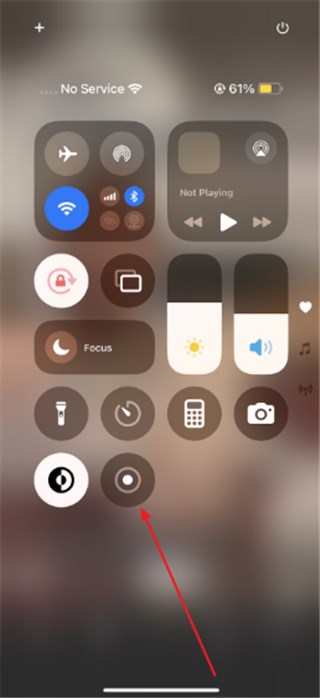
Tap Screen Recorder Icon
Step 2. As you finish recording, tap the “Screen Recorder” icon again and opt for the “Stop” option.
How to Record Apple TV+ on Windows
When exploring how to screen record Apple TV on Windows, OBS Studio stands out as the best choice. It’s a free and open-source tool that captures high-quality video smoothly. OBS also supports multiple audio and video sources, making it flexible for different recording needs. However, browser playback is protected by DRM, which may also result in a black screen when using OBS Studio. Go through the steps below to learn how to screen record on Windows:
Step 1. When you open the “OBS Studio” program, press the “Start Recording” button and record your Apple TV+ content.
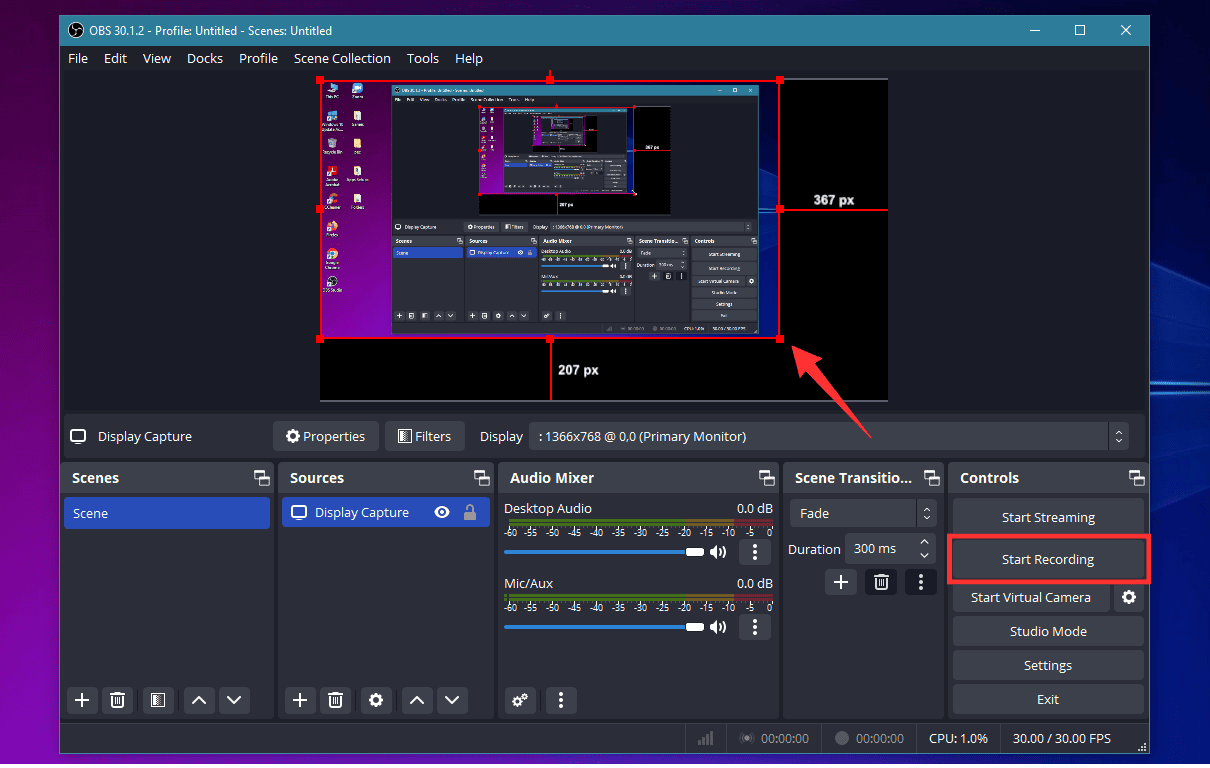
Start Screen Recording in OBS
Step 2. Once you complete the recording, hit the “Stop Recording” button.
Step 3. Click the “File” tab and opt for the “Shows Recording” option to see the recorded video.
You may also like: Record Netflix with OBS Studio Without Black Screen [New] >
How to Record Apple TV+ on Mac
Recording Apple TV+ on a Mac is easier using its native QuickTime Player tool. This method captures clear screen activity while keeping audio in good quality. You can also adjust recording settings to match your screen size or resolution. However, QuickTime Player may also not record protected Apple TV+ content, as DRM restrictions often cause the video to appear as a black screen. Adhere to the following steps to understand how to screen record Apple TV:
Step 1. Launch the “QuickTime Player” tool and then click the “File” menu to choose the “New Screen Recording” option.
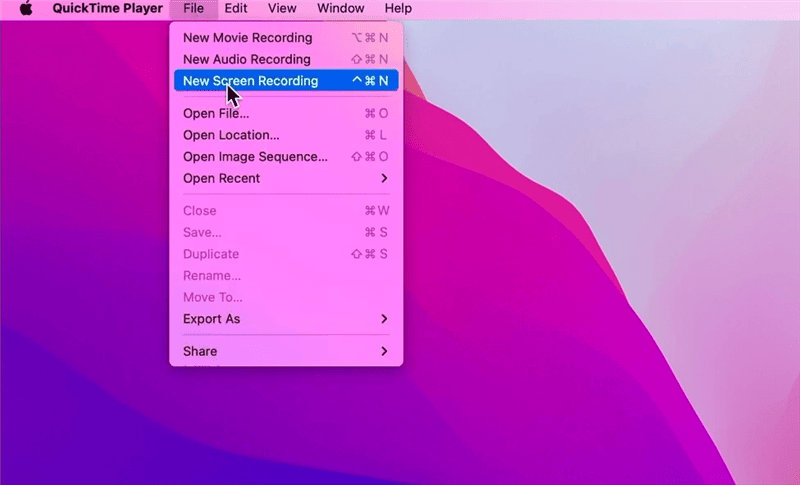
Create New Recording in QuickTime Player
Step 2. Click the dropdown section next to the red dot button and select “Apple TV.”
Step 3. As you see a dialogue box, enter your Apple TV AirPlay code and press the “OK” button to trust this device.
Step 4. Then you can start to record Apple TV+ content and shows effortlessly.

Start Recording in QuickTime Player
Bonus Tip: Download & Watch Apple TV+ Offline [No Black Screen]
Sometimes recording Apple TV+ directly causes black screens due to DRM restrictions. Downloading videos is a better and safer method for offline viewing. Keeprix Video Downloader lets you save Apple TV+ movies and shows directly to your Windows or Mac computer with no playback issues.
You can choose MP4 or MKV formats, making your downloads compatible with any device. Keeprix Video Downloader supports multiple audio and subtitle languages, and you can pick whether subtitles are embedded or separate, depending on how you prefer to watch. You can also set a custom download folder to keep everything organized. With Keeprix Video Downloader, you can easily avoid Apple TV+ slow performance and black screen issues, enjoying smooth playback anytime.
Key Features of Keeprix Video Downloader:
- Removes DRM restrictions for ad-free, unrestricted offline video playback.
- Download multiple videos in one click for convenience and time-saving.
- Features an intuitive interface with streamlined controls for quick video searching.
- Maintains high definition quality even after downloading Apple TV+ videos.
Stepwise Guide to Download & Watch Apple TV+ Offline:
Step 1. Download and open Keeprix on your computer and navigate to the “Apple TV” section from the menu.
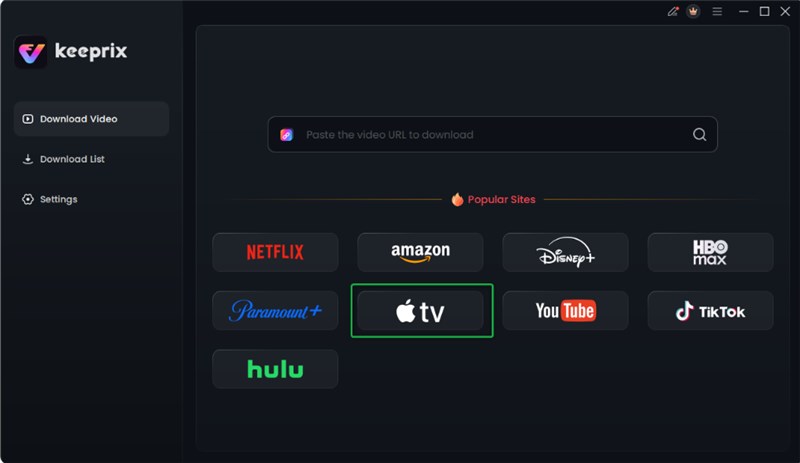
Choose Apple TV Platform
Step 2. Use the “Apple ID” to log in to your account and view all the available media content.

Log in Apple TV Account
Step 3. Go through your library to select the movie or TV show that you wish to download.
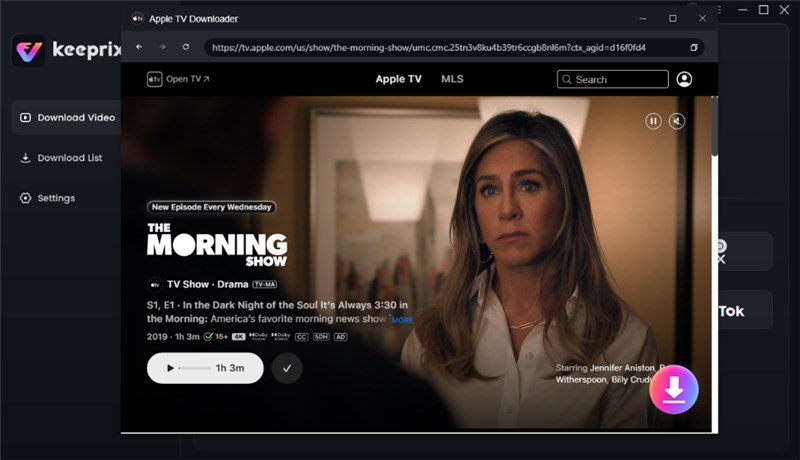
Click Download Button
Step 4. Set video resolution and other settings, then click “Download” to save locally.

Apple TV Video Download Completed
FAQs About How to Screen Record Apple TV+
Q1. Does Apple TV+ allow screen recording?
Generally, Apple TV+ does not support screen recording. When you try to capture a movie or show, the video usually appears as a black screen because the system blocks protected content from being recorded.
Q2. Why can’t I screen record Apple TV+?
Screen recording may fail on Apple TV+ because the platform uses DRM protection, which hides the video and shows a black screen instead. If you need offline access, Keeprix Video Downloader can save Apple TV+ content for private viewing without black-screen issues.
Q3. How to screen record Apple TV on iPad?
You can access the Screen Recording feature very fast by opening the Control Center. Tap the “Screen Recording” icon to start capturing your Apple TV content on iPad. On completion, tap the icon again and select “Stop” to save the recording.
Conclusion
To sum up, this article has discovered multiple ways to learn how to screen record Apple TV on iPhone, Windows, or Mac. Due to Apple’s DRM protection, videos may show black screens while being captured. For protected Apple TV+ media, downloading videos ensures an easy offline experience anytime. Keeprix Video Downloader offers an easy way to save and watch Apple TV+ shows offline without interruptions. Download Keeprix today to enjoy a smooth and convenient offline viewing experience.
 Must Read