A Quick Guide on How to Change Language on Apple TV

Nothing ruins a good show faster than messed-up language settings on Apple TV+. The audio can be switched to a language you don’t know by accident, or the menu suddenly looks too complex. It’s annoying, right? Luckily, you are not the only one who has been stumped by confusing menus.
Here’s the upside: fixing the language on Apple TV is actually pretty easy. This quick guide will show you how to change the language on Apple TV step by step. No complicated tech talk. Just clear and simple directions.
You may also like: How to change location on Apple TV
How to Change System Language on Apple TV
Before diving into detailed steps, let’s get straight to the point. When seeing menus or apps in the wrong language on your Apple TV, switching the system language can fix things instantly. No need for complicated hacks. Below is a clear guide on how to change the language on Apple TV:
Step 1. On your Apple TV, select the Settings app to proceed.
Step 2. Here, navigate to and select the General option.
Step 3. Within the General tab, opt for the Apple TV Languages option and press Add Language.
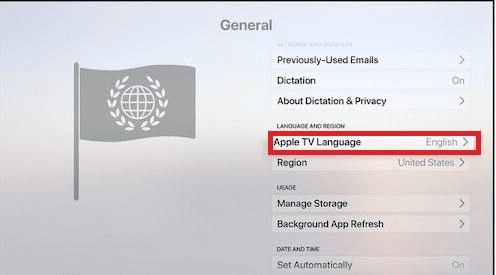
Apple TV Language in Settings
Step 4. Lastly, pick your preferred language from the list and opt for Use [new language] to conclude the process.
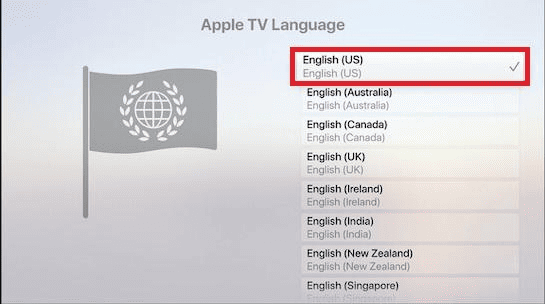
Add Language in Device System
How to Change Language for an Apple TV Video
When it is only the language in the video you are playing that is problematic, changing the system language will not help. There are two simple ways to alter the language: during streaming or by selecting the targeted language as the system default. Here is how to change language on Apple TV videos:
While Streaming
Instructions: Use the remote to swipe right during playback and highlight the Audio icon. Then, choose the track in your desired language to complete the process.
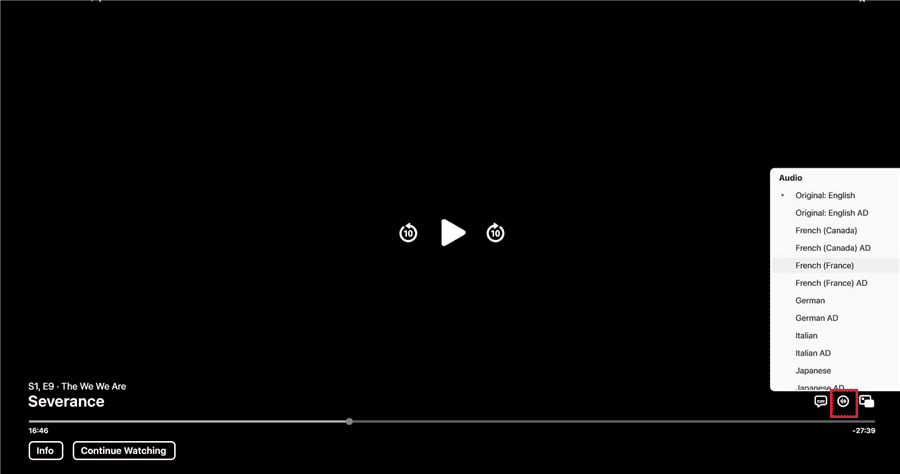
Change Apple TV Language When Streaming
Using System Settings
Step 1. Access the Settings app and choose the Video and Audio option to proceed.
Step 2. On the following screen, tap the Audio Language button to continue.
Step 3. Lastly, choose the desired language to set it as the default one for all streams.
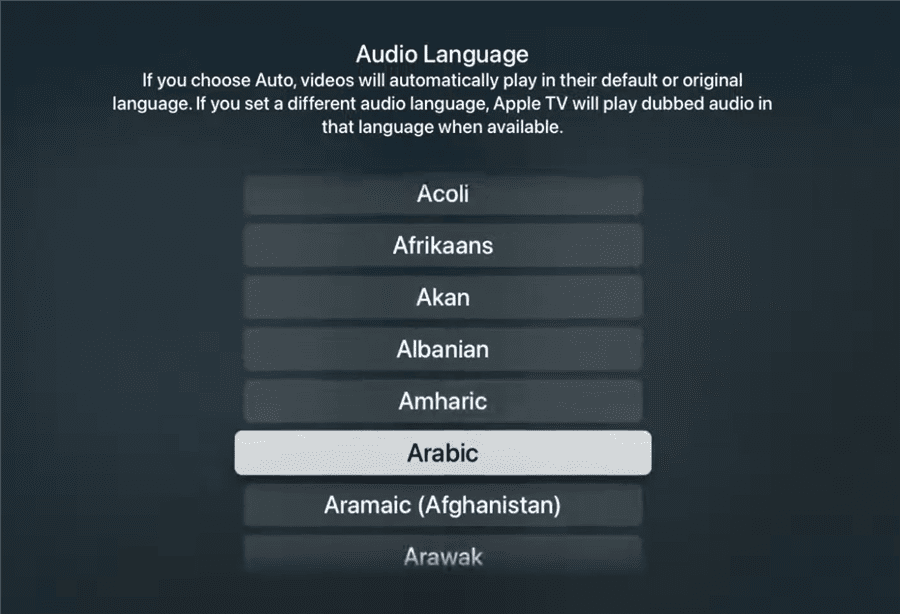
Change Language on Apple TV App
Can You Download Videos on Apple TV?
Hoping to download Apple TV+ content directly onto your Apple TV? Sadly, you cannot do that as this feature is only for specific devices. These include iOS and macOS devices, as well as Windows PCs. Even where it is allowed, this feature has strict limitations:
- Downloaded content is tied to the device and cannot be transferred.
- Web browsers do not allow video downloads.
- Downloads may expire after 30 days if not watched.
- The number of downloads is limited by the device’s available storage.
- Apple imposes device-based limits on how many titles can be stored.
How to Watch Offline on Apple TV [Bonus Tip]
Although the official download feature is not supported on Amazon Fire TV, you can still use a third-party downloader like Keeprix Downloader to download the desired movies and TV shows on your computer. Then, move them to a USB drive and watch them on the Apple TV without needing the internet.
Why use Keeprix Downloader for Apple TV video download:
- Supports output formats like MP4 and MKV for broad device compatibility.
- Get video quality up to 4K resolution, enabling high definition offline playback.
- Offers batch downloading, so you can download multiple episodes or titles in one go.
- Retains multi‑language audio tracks and subtitles.
- Remove regional restrictions, ads, and DRM to provide flexible playback options.
Quick Guide on How to Use Keeprix Downloader to Download Apple TV Shows
Use the following simple steps to get your favorite movies and dramas for offline viewing:
Step 1. Get Keeprix Downloader from its official website and run it on your system. Then, select Apple TV from the list of available platforms.
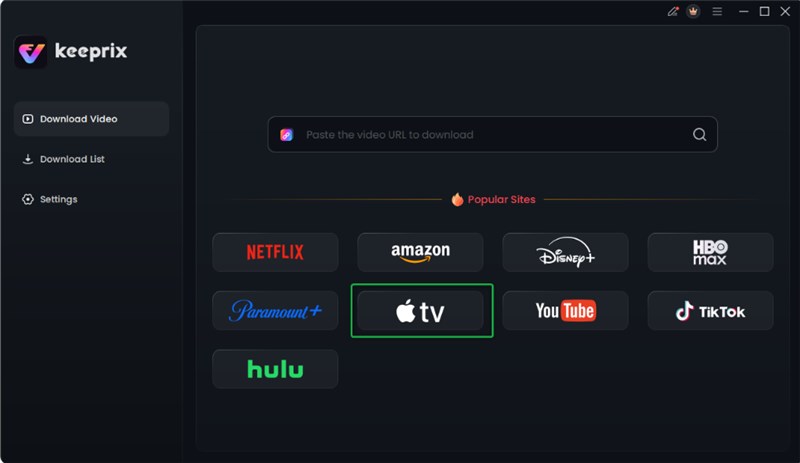
Choose Apple TV Platform
Step 2. Now, opt for the Sign In option and proceed to enter your Apple TV account credentials.

Log in Apple TV Account
Step 3. Next, make your way to the show you want to get and the Download icon.
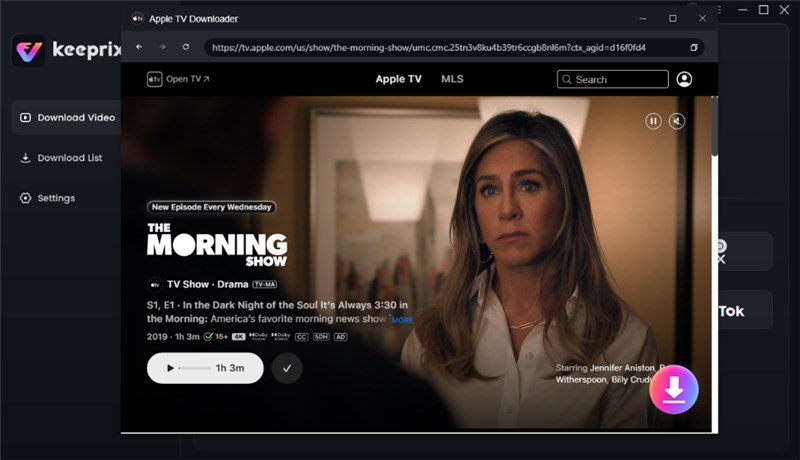
Click Download Button
Step 4. As you get to the Download Settings window, set the desired settings for Resolution, Audio, and Subtitle options.
Step 5. When done, press the Download button and wait for the targeted shows to download before moving them to the USB drive.

Apple TV Video Download Completed
FAQs About How to Change Language on Apple TV
1. How do I change my Apple TV to English?
Move to launch the Settings app on your Apple TV using a remote and select the General tab. Here, choose Apple TV Languages and select the desired language using the Add Language button. Lastly, set the chosen language as your default to conclude the process.
2. How do I get to the settings on my Apple TV?
Start on the Home screen and look for the Settings app. It is the one with the gear icon if the language is not readable for you. Now, simply use your remote to navigate through the menus and select what you need.
3. How do I change subtitles or audio language on Apple TV?
Start playing the targeted movie or episode on your Apple TV and pause it for a while. This will bring up the playback controls, where you can choose the Audio icon using the remote. From the available options, select the targeted Audio Track to conclude the task.
Conclusion
In short, switching the language on Apple TV is pretty straightforward once you know where to find it. You can change the entire system language or select a different audio track while watching something. The simple guides on how to change language on Apple TV are provided. When looking to watch Apple TV content offline, Keeprix Download provides an easy way. Download it today to enjoy every show and movie in your preferred language in no time.