Download Apple TV+ Movies as MP4/MKV in High Quality

| Quick Overview |
| This guide shows you the steps to save Apple TV+ movies and shows in MP4 or MKV formats for offline viewing at a high resolution. Although downloads from Apple TV are only accessible within the app, the use of a tool like Keeprix allows you to download videos without DRM so that you can view them on any device, at any time, and without restrictions. |
Do you want to download your favorite Apple TV+ movies offline in MP4 or MKV format and watch them later without an internet connection? You’re not alone. Many users run into the same limitation. One Reddit user shared:
I bought NCIS Seasons 1–20 on Apple TV and want to download episodes onto my PC, but the files show up as FRAG pieces. How do I get the full episode in MP4—or am I stuck using only Apple TV?
Apple TV+ offers excellent original content, but its downloads are strictly locked inside the Apple TV app. The files are stored as encrypted, fragmented packages (such as FRAG or MOVPKG), which cannot be exported, played, or shared outside the app. That’s why many users seek ways to save Apple TV+ movies as MP4 or MKV for high-quality offline viewing on any device.

Download Apple TV+ Movies as MP4/MK4
However, alternative solutions are available. In this article, we will cover the best ways, the safest tools, and all the necessary information to breathe new life into your Apple TV+ viewing experience.
Part 1. Can You Download MP4 from Apple TV+?
Simply put, no, Apple TV+ does not offer any option to save movies or shows as MP4 or MKV files. While Apple does support offline viewing, the downloaded files:
- are encrypted with FairPlay DRM
- use fragmented containers (e.g., FRAG, MOVPKG)
- are only playable inside the Apple TV app
- cannot be accessed as normal video files or exported to your PC
Therefore, even if you have bought or downloaded a show, you will not be given an MP4 file that is usable on your computer. This is why some users turn to alternative tools or methods to convert or save Apple TV+ content so it can be opened in formats like MP4 or MKV. We will discuss the safest and most effective choices in the subsequent sections.
Part 2. How to Download Apple TV+ Movies as MP4
Apple TV+ doesn’t support direct MP4 or MKV downloads. So, to get the job done efficiently, you need a professional video downloader. Keeprix All-in-One Downloader is a leading tool in this regard. It enables you to download Apple TV+ movies and TV shows in MP4 or MKV without any quality degradation or limit on the number of downloads.
If you want offline viewing, long-term storage, or playback on any device, Keeprix offers you complete freedom.
Key features of Keeprix
- Download Apple TV+ movies and shows in MP4/MKV.
- Gives users the ability to save videos as DRM-free files for unlimited offline playback.
- Compatible with Windows and Mac.
- Removes download limits, expiration, and regional restrictions
- Built-in smart browser for faster & more stable downloads
- Enables users to download in batches to create their personal media libraries.
How to download Apple TV+ movies as MP4 with Keeprix (Step-by-step)
Step 1. Download and install Keeprix
On your Windows or Mac computer, download and install the Keeprix Downloader.
Step 2. Select Apple TV+
Open the application and select Apple TV, or enter the Apple TV+ video URL in the address bar.
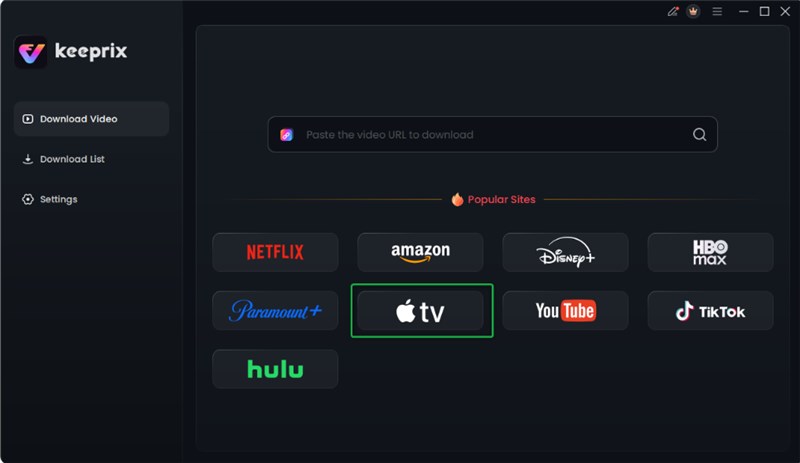
Choose Apple TV Platform
Step 3. Log in to your Apple TV+ account
Use your Apple ID to log in, after which Keeprix will be able to fetch and analyze the video.
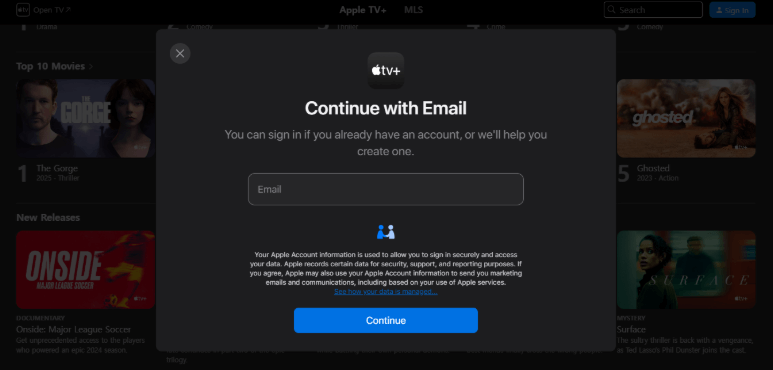
Sign in Your Apple TV Account
Step 4. Choose the video and set your preferences
After choosing the movie or episode, decide the format (MP4/MKV), resolution, audio, and subtitles.
Step 5. Download and enjoy offline
Initiate the download, let it finish, and then get your MP4/MKV file from the Completed List section.

Apple TV Video Download Completed
Part 3. How to Download Movies and TV Shows from Apple TV+ | Official Way
Apple supports offline viewing only through its app. Still, the downloads are secured, and users are not allowed to save them as MP4 or MKV files. If you are only interested in offline viewing of content on your gadgets, here is a brief 3-step guide.
Step 1. Launch the Apple TV app
Use the Apple TV app on your iPhone, iPad, Mac, or Windows PC. Make sure to log in with your Apple ID, as the downloads will be saved under the account.
Step 2. Choose the movie or episode
Explore the library or use the search to locate the content (Apple TV+ show, movie, or event) you wish to download. When you have it, press or click on the Download button.
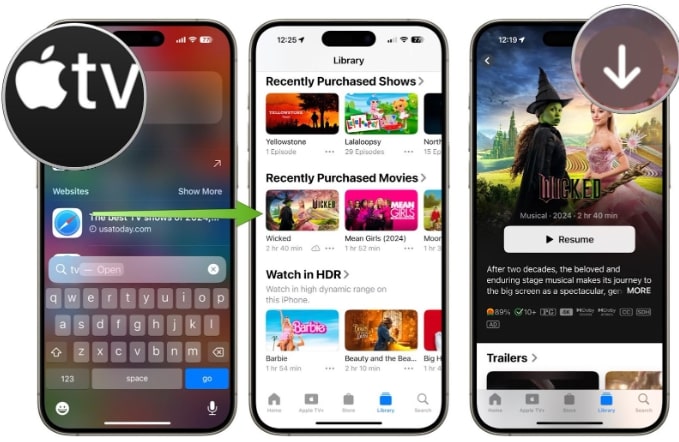
Click the Download Button
Step 3. Watch offline in the Library tab
After the download completes, head to Library > Downloaded to find the content you want to watch offline. If you are working on a PC and “Downloaded” is not there, click More and enable it.
In this way, you can watch your shows or movies without an Internet connection, which is a great option when you are traveling or in places with a weak Internet connection.
Official limitations:
- Downloads stay encrypted inside the app (no MP4/MKV access).
- Titles expire after ~30 days and may have device/title limits.
- No downloads on Apple TV box, smart TVs, or tv.apple.com.
Part 4. FAQs
Q1. Can Apple TV convert MKV to MP4?
Definitely no. Apple TV cannot convert MKV or any other file format to MP4. It just streams or downloads content that is standard for its own protected formats, so what you have downloaded cannot be exported or converted directly. If you want to have MP4 files, then you need to employ third-party tools like Keeprix Downloader.
Q2. When I buy a movie on Apple TV, where is it stored?
The movies or shows that you have purchased are saved in your Apple TV library and associated with your Apple ID. You may download them for offline viewing inside the app. Nevertheless, these downloads are encrypted, so you cannot access them as separate video files on your computer.
Q3. Can you download movies from Apple TV to an external hard drive?
Apple TV downloads are limited to the Apple TV app on compatible devices and non-transferable external drives. In case you wish to download movies on an external drive for later viewing on different devices, you will require a third-party tool such as Keeprix that supports DRM-free MP4 or MKV downloads.
Conclusion
Downloading Apple TV+ videos for offline viewing is easy through the official app, but the files remain encrypted and cannot be used outside Apple’s ecosystem. If you want a standard MP4 or MKV file for long-term storage, personal use, or playback on any device, a tool like Keeprix All-in-One Downloader offers the simplest and most flexible solution.
It provides you with DRM-free, high-quality MP4/MKV videos that you can watch anytime, anywhere, without any limitations.
 Must Read