How to Save Netflix Downloads to SD Card -Full Guide

| Quick Overview |
| This guide explains how to download Netflix to SD card for extra storage. It covers direct downloads, common issues, and troubleshooting tips. Users will learn why Netflix may block SD card usage and how to manage storage efficiently. For permanent saving and offline access, Keeprix Video Downloader is recommended. |
Netflix lets you enjoy your favorite shows and movies offline anytime and anywhere. However, many devices quickly run out of space due to small internal storage limits. This creates frustration when trying to keep multiple shows or films downloaded offline. A simple fix is to use an SD card to expand storage for downloads. Many people now want to download Netflix to SD card for extra room easily. This guide explains how to set it up with clear steps anyone can follow.
Download Netflix to SD Card
Part 1. How to Download Netflix Movies Directly to SD Card?
Saving Netflix movies straight to your SD card gives you more free space easily. This option helps you keep more shows without filling your device’s limited storage. It also lets you manage downloads better, especially when traveling. It is better to understand how this feature functions with the Netflix app beforehand. The following steps will guide you to learn how to download Netflix to SD card:
Step 1. Open the Netflix app and navigate to the “My Netflix” tab from the app’s main screen.
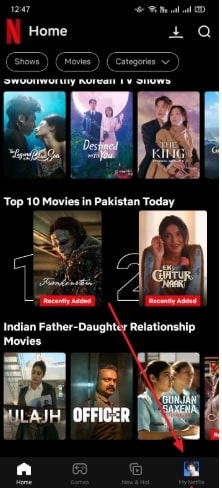
My Netflix
Step 2. Tap the “Hamburger” icon and opt for the “App Settings” feature.
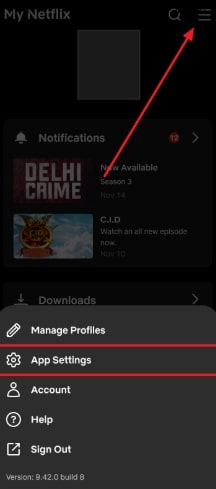
App Settings
Step 3. Press the “Download Location” section and choose your “SD Card” as your output.
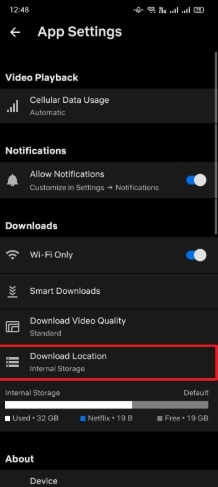
Download Location
Once selected, all future Netflix downloads will be saved directly to the SD card unless an issue occurs. If the setting keeps reverting to internal storage, proceed to Part 2.
Part 2. Why Won’t Netflix Let Me Download to SD Card?
I am not able to change the download location to SD card within Netflix app. It has the option, but whenever I select SD card it reverts back to internal… I tried reinstalling, restarting the tablet, using another card—nothing works. Any suggestions?
-Reddit User
There is a common problem with saving Netflix downloads to an external storage card. The app may not detect the card or reset the location automatically. This problem usually happens due to software bugs, permission errors, or faulty SD cards. Let’s look at common reasons why Netflix may not allow this feature to work properly:
- Storage Permission: Netflix needs permission to access your SD card for saving downloaded files. Check your device’s app settings and allow full storage access for smooth downloading.
- Card Damage: A damaged SD card can block new downloads and cause constant location resets. Testing another card helps confirm whether the original storage is failing internally.
- App Glitch: Temporary app bugs may stop storage changes and push settings back to internal. A restart of the app or a clearing of the cache solves these errors and resumes working with the app.
- Unsupported SD Card Format: Your SD card may use an unsupported format that prevents proper Netflix downloads. Reformatting the card using device settings fixes recognition and download failure issues.
- Storage Limit: When your SD card is almost full, Netflix might automatically switch to internal storage. Always leave enough free space to store the newly downloaded movies or shows.
Part 3. How to Save Netflix Downloads on SD Card Permanently
A lot of individuals desire an option to store Netflix movies safely to watch offline. Netflix downloads usually expire or vanish once a title is removed from the platform. To save them permanently, you can use Keeprix Video Downloader on your computer. It allows you to download Netflix to SD card through a PC without storage limitations. The MP4 or MKV output options are also available to provide flexibility and compatibility.
It is also able to choose the resolution 720p or 1080p to ensure that it can be used on any screen. Hardware acceleration enables faster downloads by improving processing performance. You can include subtitles in up to 13 languages for accessible global entertainment. It allows internal or external subtitle options depending on your viewing preferences. The output path setting lets you define where the downloaded videos are stored easily.
Key Features
- No Ads: Ad-free downloading offers an uninterrupted workflow, helping users enjoy without distractions.
- Simple Interface: A simple interface makes navigation easy, helping beginners operate every feature comfortably.
- Clear Preview: Clear preview windows let users confirm selected videos before starting download processes.
- No Limits: No download limits let users save unlimited shows and movies without restrictions.
Detailed Steps to Save Netflix Downloads on SD Card Permanently via Keeprix
Step 1. Download and run Keeprix on your device and click “Netflix” from the main screen.
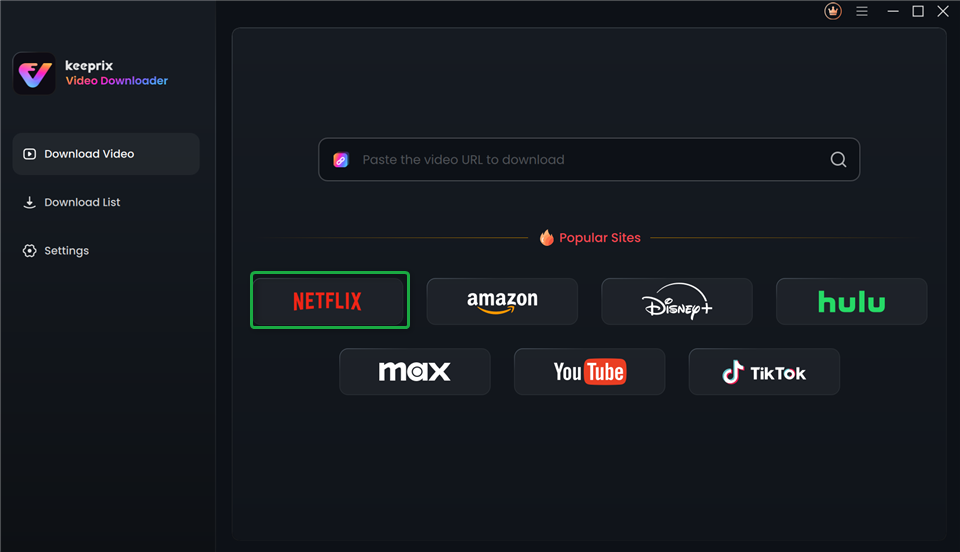
Choose Netflix in Keeprix Video Downloader
Step 2. Press the “Sign In” button and log in with your correct account credentials.
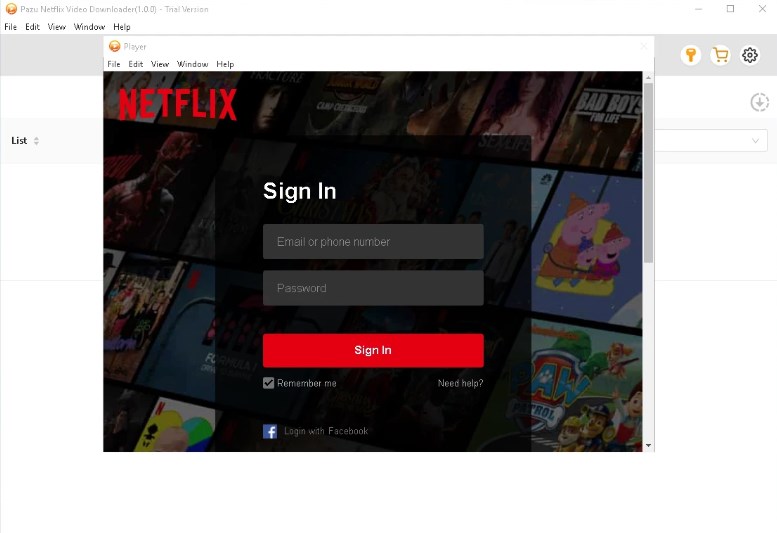
Log in to your Netflix account
Step 3. When signed in, choose your preferred movie or show and then click the “Download” button.
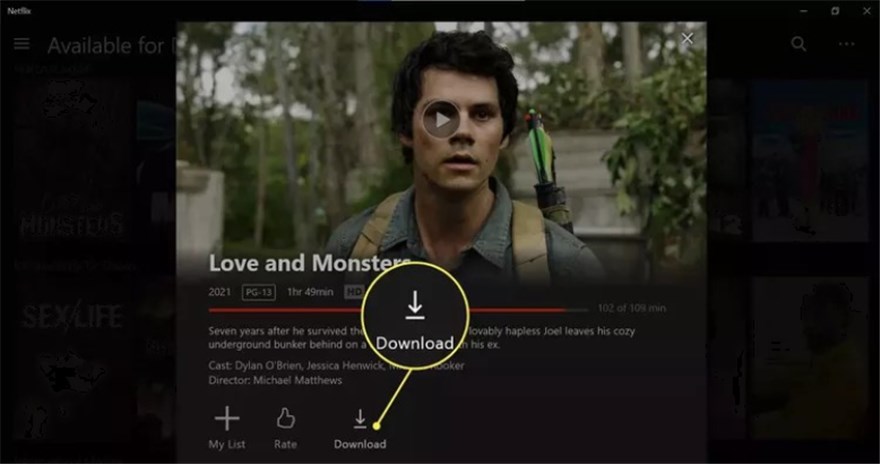
Click Download Icon on Netflix
Step 4. Choose your desired resolution or other settings. Confirm the download settings and wait for the download to end. Then you can access your downloads in the Download List section.
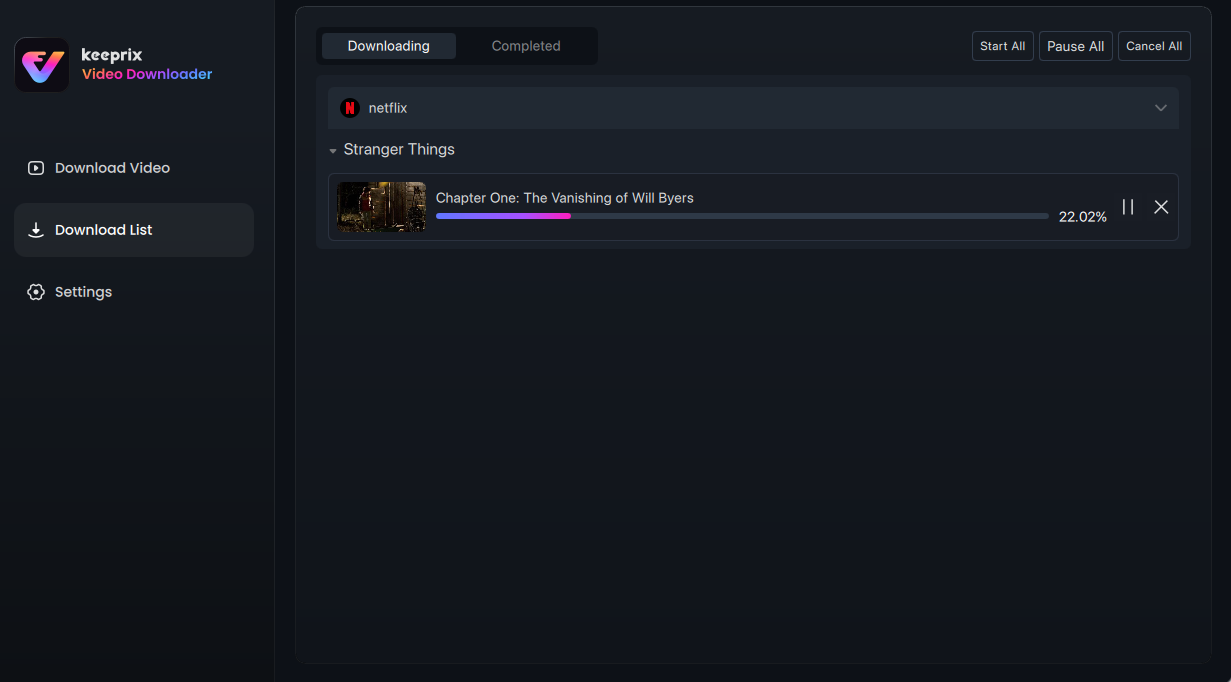
Downloading Netflix Videos
Part 4. FAQs
Q1. Can I download Netflix movies to an SD card on iPhone?
It is not possible to download Netflix movies directly to an SD card on an iPhone. Netflix for iOS only allows downloads to internal storage, restricting external or removable drives. All downloaded files remain encrypted within the app, blocking any transfer externally.
Q2. Will Netflix downloads stay on my SD card forever?
Downloads on the SD card will run out beyond the time period they are permitted to remain. They are mostly available to last between 7 and 30 days based on the license. In case a movie is removed or expires, Netflix automatically deletes it from storage.
Q3. How to transfer Netflix downloads to Gallery?
You can’t move Netflix downloads to your gallery because the files remain encrypted internally. Netflix stores all downloaded videos in the application because no one can copy or share them. App Settings allow you to change the location where you keep the downloads.
Conclusion
In conclusion, downloading shows to a storage card helps you save space and enjoy offline viewing. These steps make it easy to download Netflix without confusion or trouble. Yet, these files may expire or vanish based on Netflix’s content rules and licenses. To keep your favorite shows forever, use Keeprix Video Downloader to download Netflix to SD card easily. Download Keeprix Video Downloader today to save and manage your Netflix content offline.
 Must Read