| Quick Overview |
| To fix Netflix error code NW-2-5, restart your router and device, check your network, and disable any VPN or proxy. Or, simply use Keeprix Video Downloader to download and watch shows offline without worrying about Netflix code NW-2-5 again. |
When your Netflix screen suddenly goes black and displays an error message, it typically indicates Netflix error code NW-2-5. This network-related issue means your device cannot connect to Netflix properly. The good news is that this error is usually easy to fix. We’ve compiled 11 effective methods to help you resume playback quickly. The following guide will walk you through troubleshooting and resolution step by step. Let’s get started.
Fix Netflix Code NW-2-5
You may also like: Netflix Not Working? 6 Ways to Fix It! >
What’s Netflix Code NW-2-5?
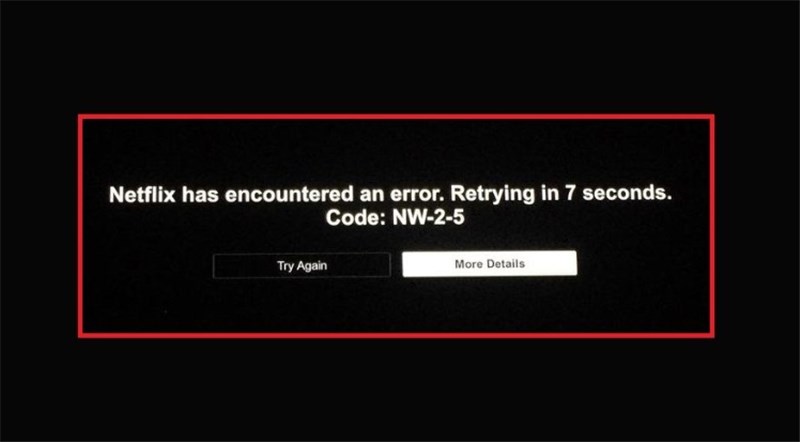
Netflix error code NW-2-5 indicates your device cannot successfully connect to Netflix servers. In other words, requests are not reaching Netflix, causing playback to be interrupted. This type of issue relates to network connectivity, not account permissions or subscription status. Possible causes for connection failure include:
- Weak or unstable Wi-Fi signal
- Router settings blocking access
- Public or hotel networks restricting streaming requests
- Disrupted communication path between device and network
Netflix Code NW-2-5
Regular Fixes for Netflix Code NW-2-5
Now that you know the problem, let’s start fixing it right now. We will begin with the simplest steps first for a quick solution.
Way 1. Check Your Network Connection
Start with a quick look at your network. Run a small test on another app to confirm the connection works. If nothing loads, the issue sits in your network, not Netflix. Fixing that first step can clear the error fast. You can restart your router or use another connection. On many devices, you can check this under Settings > Network.
Way 2. Restart Your Streaming Device
NW-2-5 may be triggered when temporary internal device malfunctions or cache conflicts occur. Restarting the device clears these transient errors and restores normal network connection procedures. Turn off your streaming device completely for one minute. This simple action often clears up minor temporary errors right away.
Way 3. Verify Internet Connectivity
A stable internet connection is essential for Netflix to stream content without interruptions. If the NW-2-5 error appears, first confirm that your network is working properly. Try loading another app or playing a short video on a different device to ensure the connection is active and stable.
Most devices allow you to check this through Settings > Network Status. If the network test fails or appears unstable, address your internet connection before troubleshooting further.
Way 4. Update Your Streaming Device
Old software can trigger Netflix code NW-2-5. Go into your device settings and look for system updates. Many devices place this under Settings > System > Software Update. Install any pending updates and try Netflix again.
Way 5. Check for Router Firmware Updates
Netflix error NW-2-5 can occur when router firmware becomes outdated and disrupts the connection between your device and Netflix’s servers. To eliminate this possibility, access your router’s management page or the manufacturer’s website to check for any available firmware updates. Install the latest version and restart the router to restore stable network performance.
Way 6. Adjust DNS Settings
Incorrect or slow DNS resolution can trigger the Netflix error NW-2-5, as your device may fail to locate Netflix’s servers in time. Try switching your network settings to a faster public DNS address. Using one like Google’s will help Netflix load quickly without any problems. On many consoles, you can find this under Settings > Network > Advanced Settings > DNS.
This method is only applicable to PlayStation and Xbox consoles.
Way 7. Disable VPN or Proxy
VPNs and proxies can block Netflix servers. Try turning off your VPN program completely for a quick streaming test. This might stop the NW-2-5 error by letting Netflix see your real location.
Way 8. Clear Netflix App Data
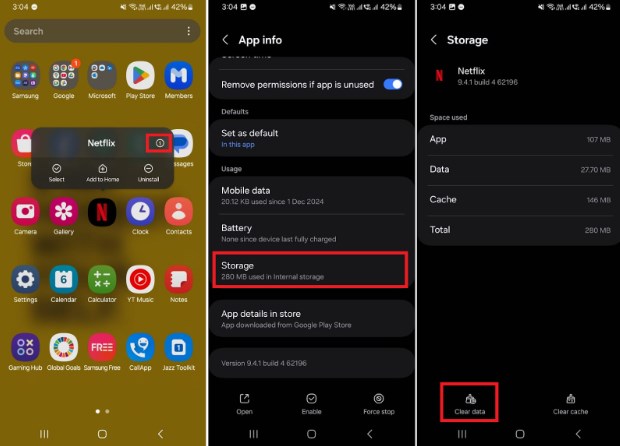
Corrupted or outdated app data can interfere with the Netflix connection process and may trigger the NW-2-5 error. Clearing the app’s cache or stored data forces Netflix to reload essential files and establish a clean connection. You should go into your device Settings > Apps > Netflix > Storage to clear the app data or cache. This reset often resolves app-level issues that block proper network communication.
Clear Netflix App Data
Way 9. Contact Your Internet Service Provider
Sometimes the Netflix code NW-2-5 issue comes from your internet provider. Give them a call and explain the connection problem. They can check for outages or settings blocking Netflix and offer you the required solutions to fix it.
Way 10. Contact Netflix Support
If nothing else works, it’s time to reach out to Netflix support directly. Explain everything you have tried to fix the NW-2-5 error. Their team can guide you through device-specific fixes. Often, a quick chat resolves the problem fast.
How to Watch Videos Without Netflix Code NW-2-5
Instead of dealing with NW-2-5 and other connection errors, you can simply download your videos for offline viewing. Once a movie is saved on your device, network issues no longer affect playback. Keeprix Netflix Video Downloader makes this easy. It lets you download Netflix movies and TV shows directly to your computer in high-quality MP4 format. You can watch the files anytime, on any device, without buffering or error codes. With Keeprix Video Downloader, you always have reliable offline access — no network, no interruptions, and no NW-2-5.
Key Features of Keeprix Video Downloader:
- Saves Netflix videos as MP4 or MKV files easily.
- Download videos in very high quality up to 1080p.
- Works well on both Windows and Apple Mac computer systems.
- Supports downloading videos from Netflix, Amazon Prime, Disney+, etc.
Steps to Watch Netflix Videos without Netflix Code NW-2-5 Error:
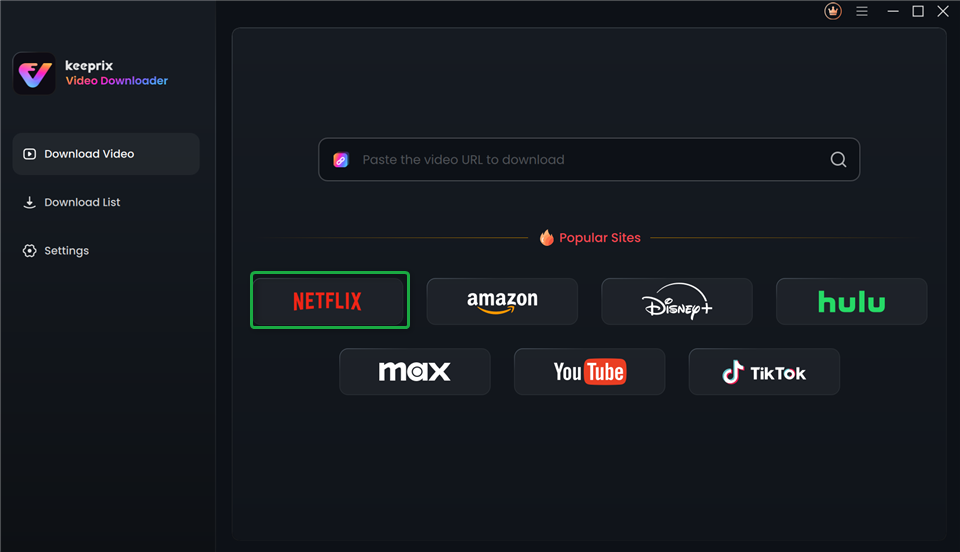
Step 1. Download and install Keeprix Video Downloader. Launch it and select “Download Video” from the left. Then, choose “Netflix” platform.
Choose Netflix in Keeprix Video Downloader
Step 2. Keeprix will direct you to the Netflix website. Log in to your account and find the videos you want to watch.
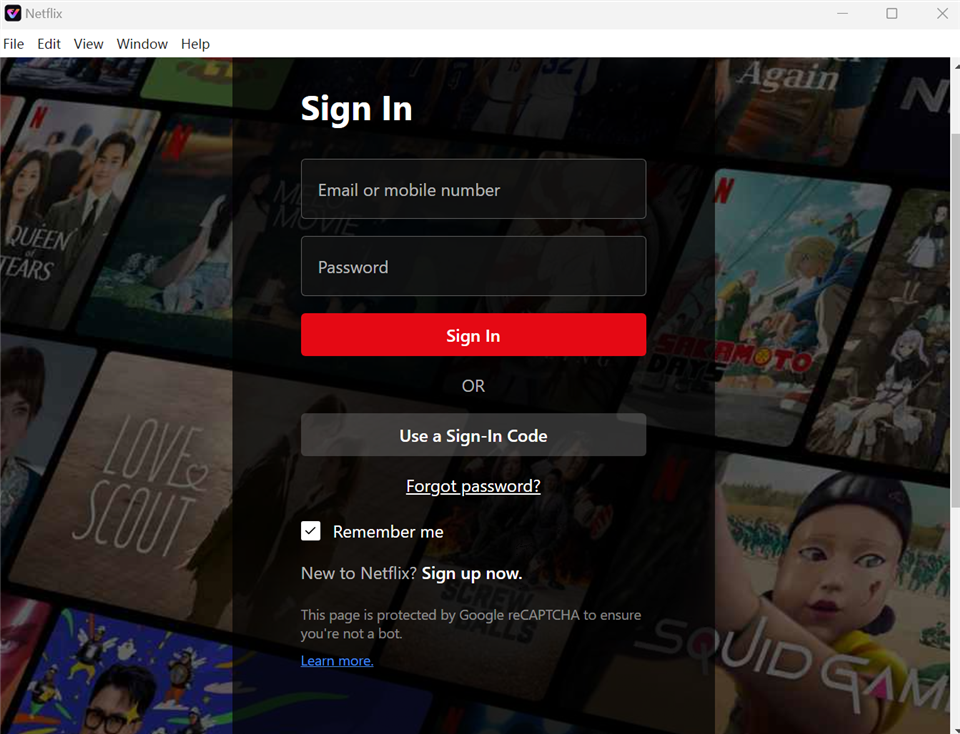
Sign In to Your Netflix Account
Step 3. Select your desired video. Then, click the “Download” icon.
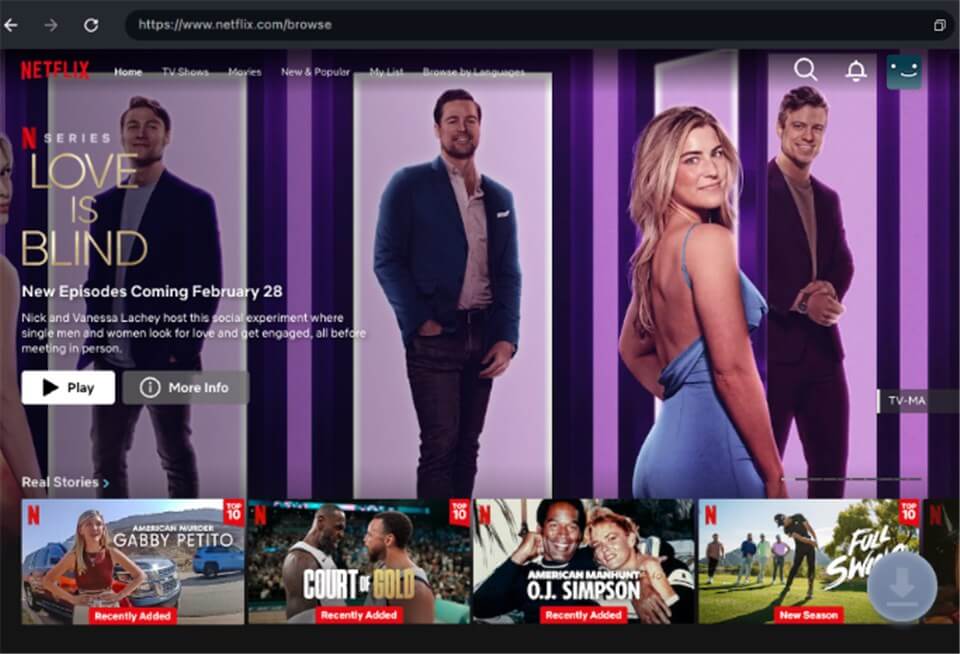
Download Movies You Want on Netflix
Step 4. Select the video’s Resolution, Audio, Subtitle, and Subtitle Type. Choose the Output Path and click “Download.”
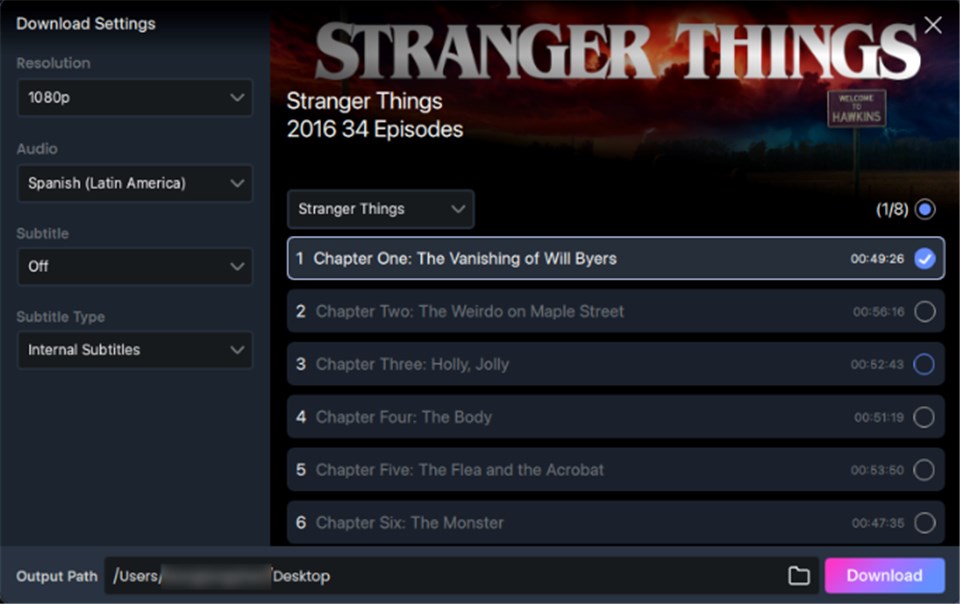
Customize Download Setting
Step 5. Once the download is complete, go to “Download List” on the left to find it.
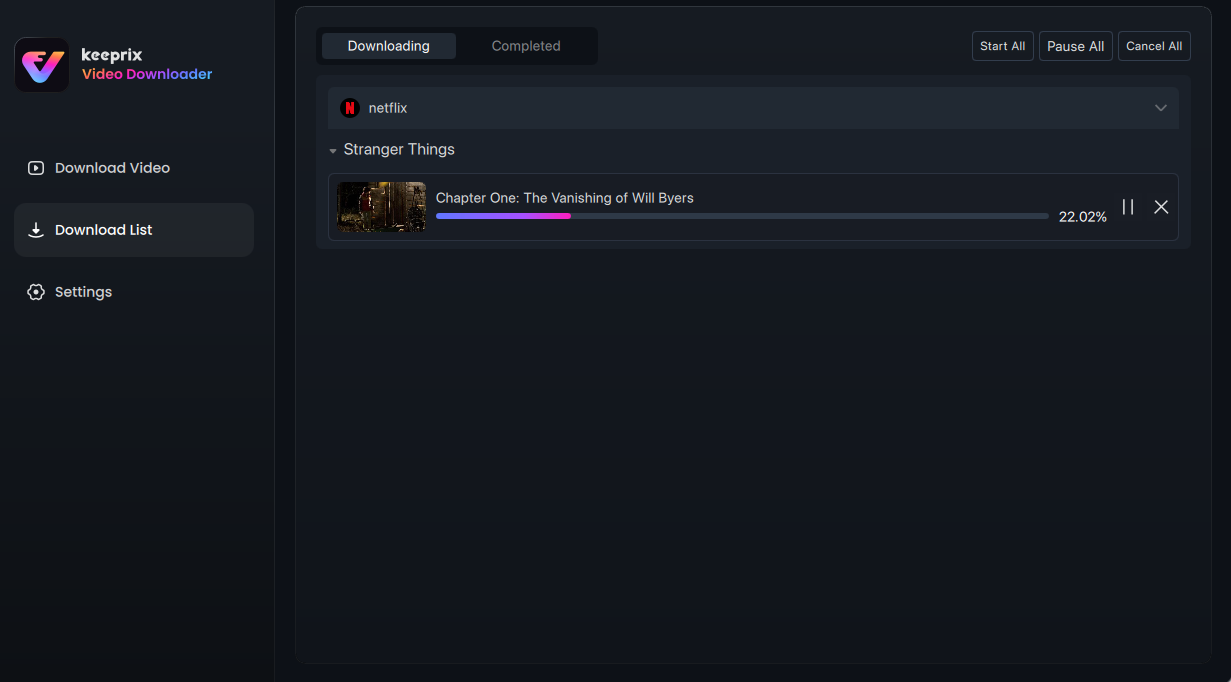
Downloading Netflix Videos
FAQs about Netflix Code NW-2-5
Q1. Why is Netflix not working even though I have Wi-Fi?
Netflix may still fail to load if your Wi-Fi is weak, unstable, or blocked by router settings. Even with Wi-Fi, the device might not reach Netflix’s servers properly. Restarting the router or testing another network usually helps.
Q2. How do I reset my Netflix error code?
Most Netflix errors clear by restarting your device and refreshing the network connection. You can also reopen the Netflix app or restart the router to reset the connection path. If the issue persists, check DNS or app data.
Q3. How to fix Netflix NW-2-5 on a Smart TV?
Start by checking your internet connection, restarting your Smart TV, and rebooting the router. Ensure the TV is connected to a stable network and the DNS settings are correct. If needed, switch to a wired Ethernet connection for better stability.
Conclusion
Netflix code NW-2-5 can stop your streaming in its tracks, but it’s usually a simple network or device issue. In this guide, we covered 11 easy ways to fix it and get your shows back on track. For those who want a worry-free experience, Keeprix Video Downloader lets you download and watch Netflix videos offline. No errors. No connection problems. Just smooth streaming anytime. Download Keeprix today and enjoy your favourite shows without interruptions.
 Must Read