
Free DownloadWindows 11/10 Free DownloadmacOS 11 and above Get the Mac Version | 100% Clean & Secure
 View Pricing


Download Video
-
Streaming Platforms
-
Social Media


Download Apple TV Video
Whether you're gearing up for a long journey with no stable Internet connection or looking to avoid annoying buffering and high data costs during your commute, offline viewing of Apple TV content is an excellent choice. Keeprix Downloader offers a simple way to easily download movies, TV shows, and events from Apple TV Channels, and even MLS Season Pass. Follow this guide to start downloading Apple TV videos.
Compatibility of Computer System
| Windows OS | Windows 10, 11 |
| macOS | macOS 12 (macOS Monterey) and above |
Differences between Trial Version & Activated Version
We prioritize your satisfaction and want you to have a smooth trial experience. The trial version allows unlimited downloads from social media platforms and 1 video download per streaming platform, including Netflix, Amazon, Disney+, Hulu, Max, and others. This gives you the opportunity to explore the core features before upgrading. For unlimited streaming video downloads, simply upgrade to the activated version to unlock the full download experience.
| Benefits | Trial Version | Activated Version |
| Social Media Video Downloads | Unlimited | Unlimited |
| Streaming Video Downloads | 1 video per platform | Unlimited |
Step 1. Download and Install Keeprix Downloader on Computer.
Click the download button below to download Keeprix Downloader to your PC/Mac. Ensure that you have a stable network connection during the download and installation process.
For detailed downloading and installation instructions, please click here to view the download and installation guide.
Step 2. Choose Apple TV Platform.
Launch Keeprix Downloader on computer. Please select the Apple TV platform under Streaming Services option. Alternatively, you can paste the Apple TV video URL to access the video.
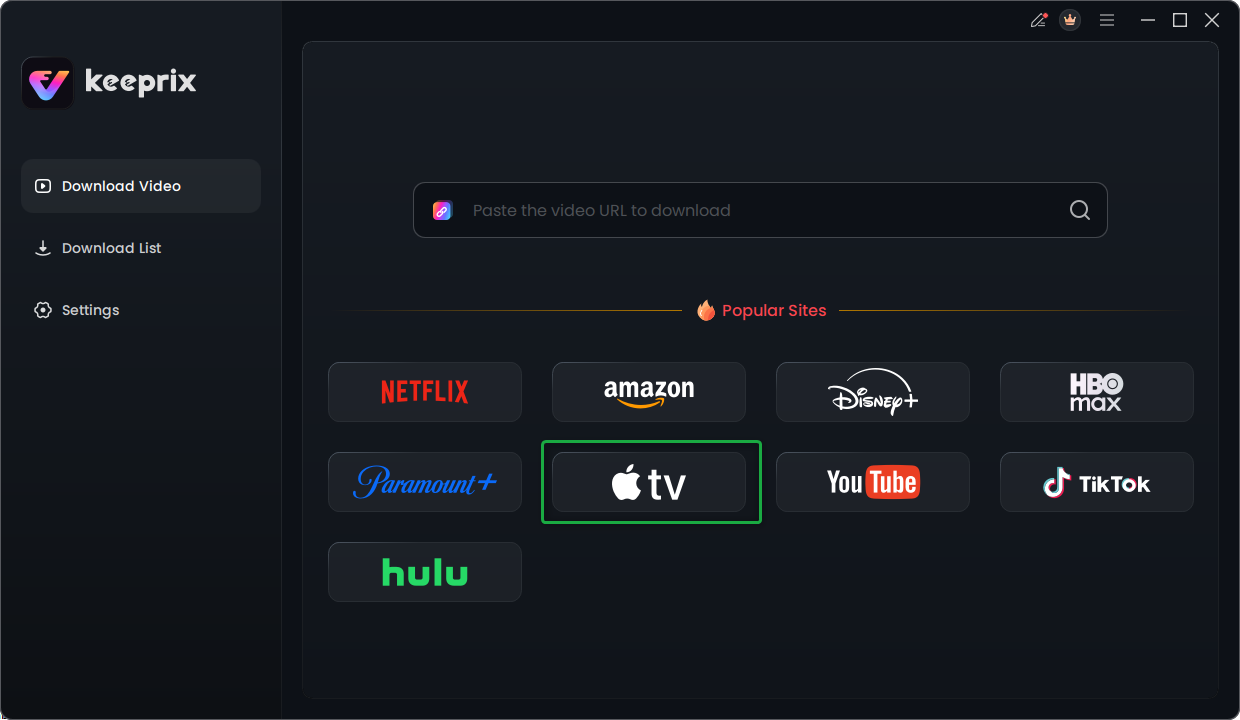
Choose Apple TV Platform
Step 3. Log in Apple TV Account.
After choosing the Apple TV platform or pasting the Apple TV video link, it will proceed to the Apple TV website.
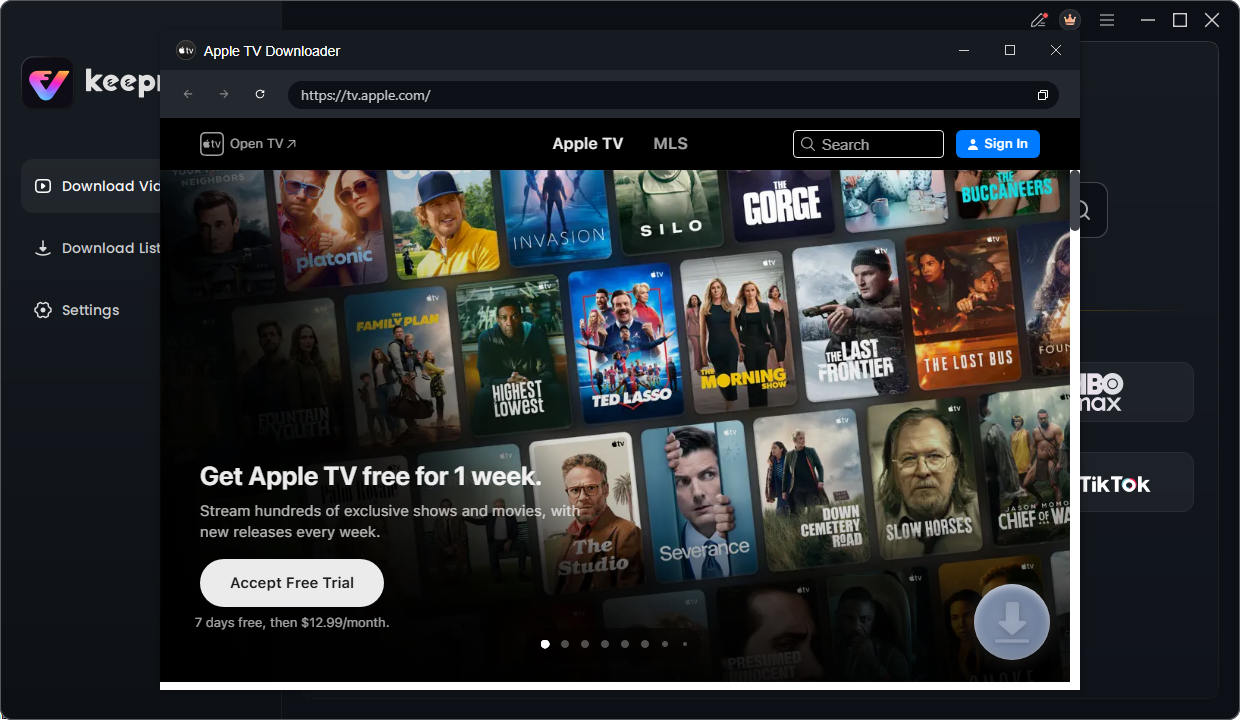
Proceed to Apple TV Website
Before downloading videos, ensure you are logged into your Apple TV account. Enter your Apple TV account and password to log in.
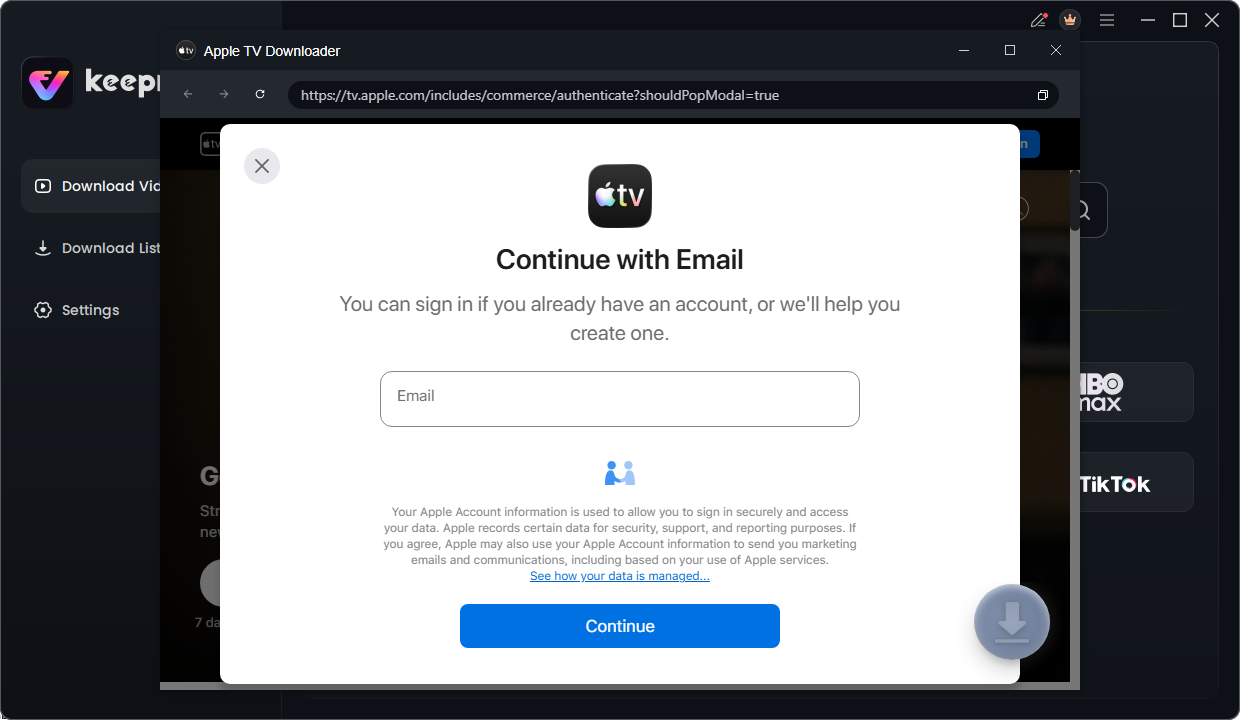
Log in Apple TV Account
The account login is only used to obtain the correct video information, and we fully ensure the privacy of your data.
Step 4. Choose the Videos You Want to Download.
Browse all videos available for download. If you paste a link to access the video, you will see the search results for the shows or movies, and the video will be displayed on the page.
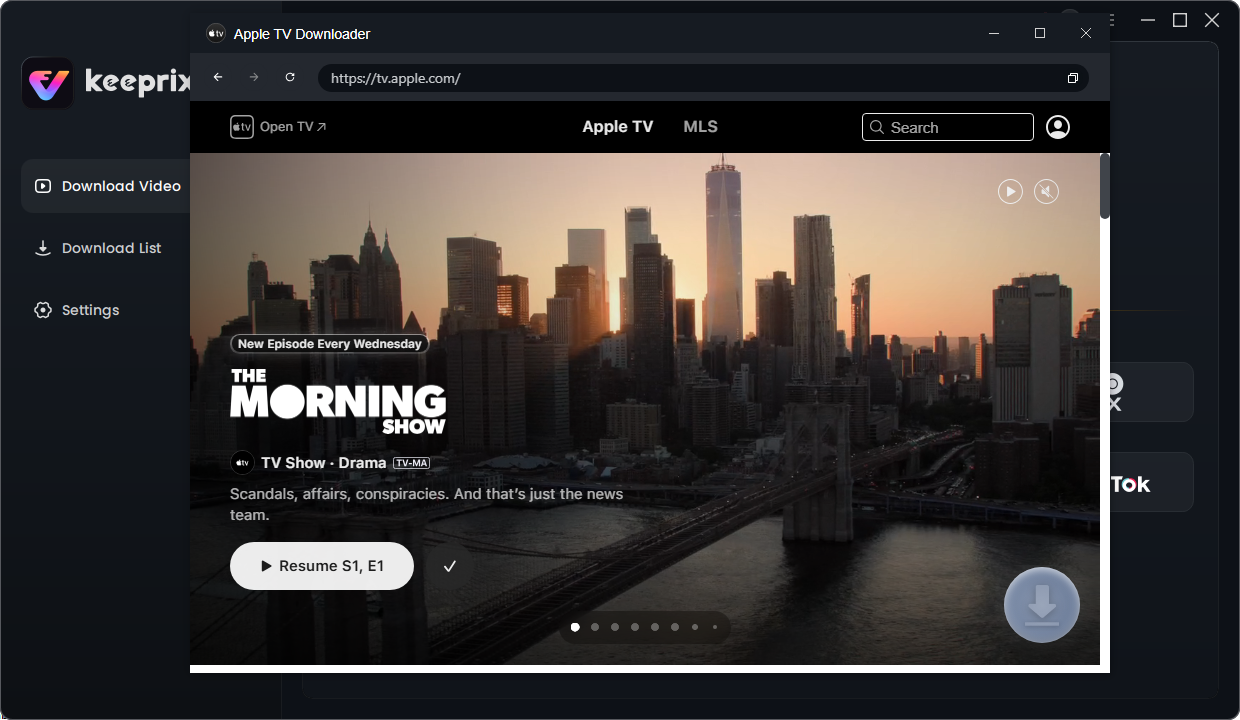
Browse Shows and Movies
1. If you want to download videos from the MLS channel, please click on the MLS channel first, then select a specific category. If there’s still another list of subcategories after the second step, please click on the list name again to enter the details page.
2. If you copy the link of a specific video from an MLS channel and paste it into the address bar, then click Download, our program can fetch and display all the highlight videos of the current match.
Select the video you want to download, and then click the Download icon.
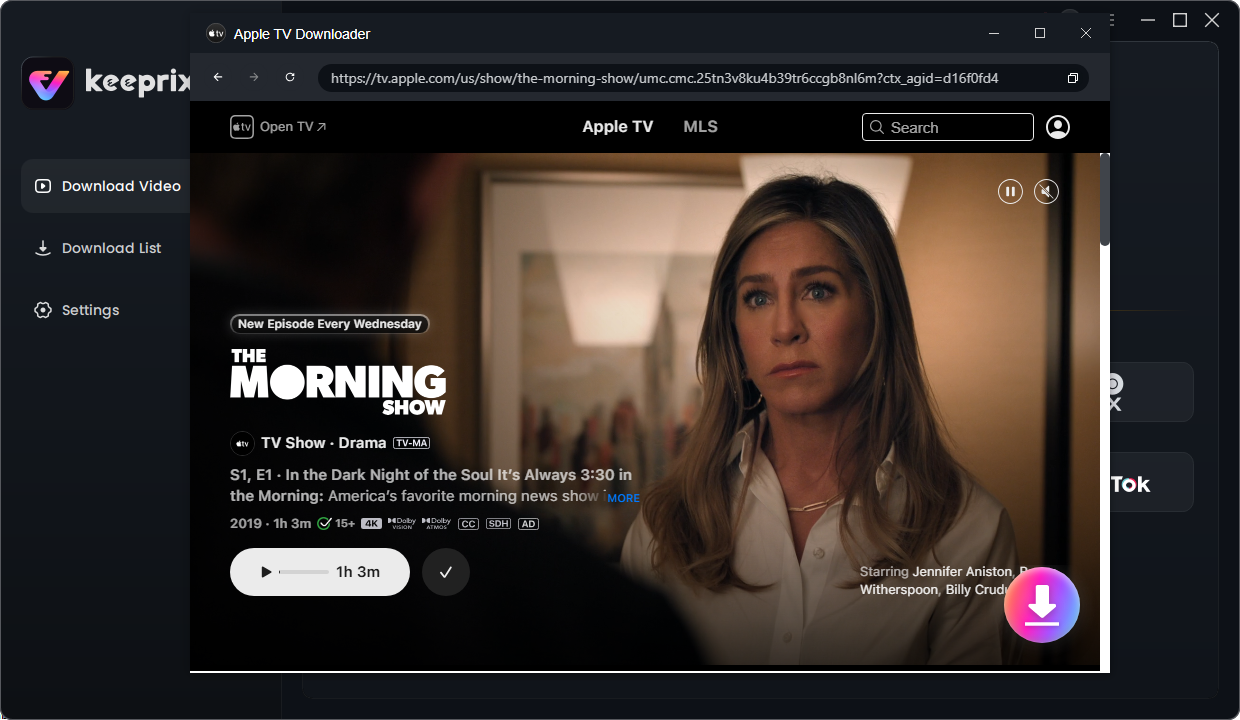
Click the Download Button
Once you click the Download button, it will analyze the video automatically and it will pop up a setting window as below. In this Download Settings page, you can choose Resolution, Audio, Subtitle, Subtitle Type and Output Path as you like. You can also select all videos in a collection in batches.
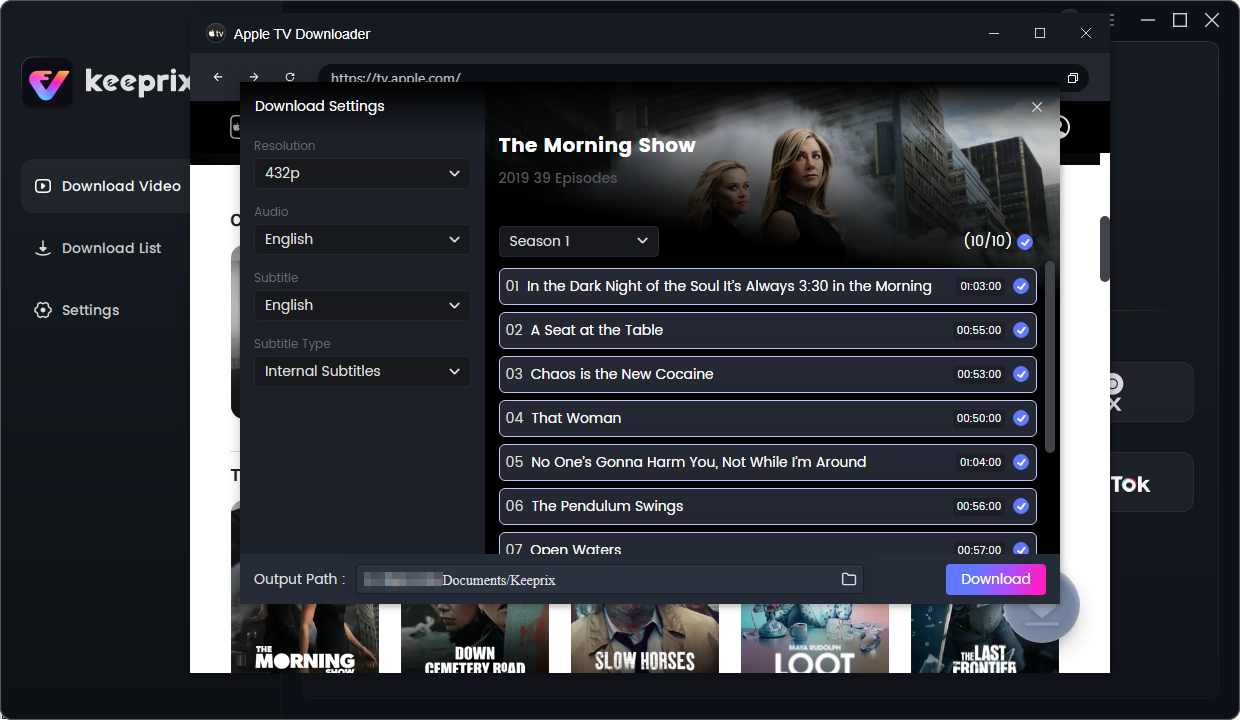
Configure Download Settings
Step 5. Download Completed.
After clicking the Download button, you will see the download task in Download List. You can also Pause, Re-download or Delete the download task.
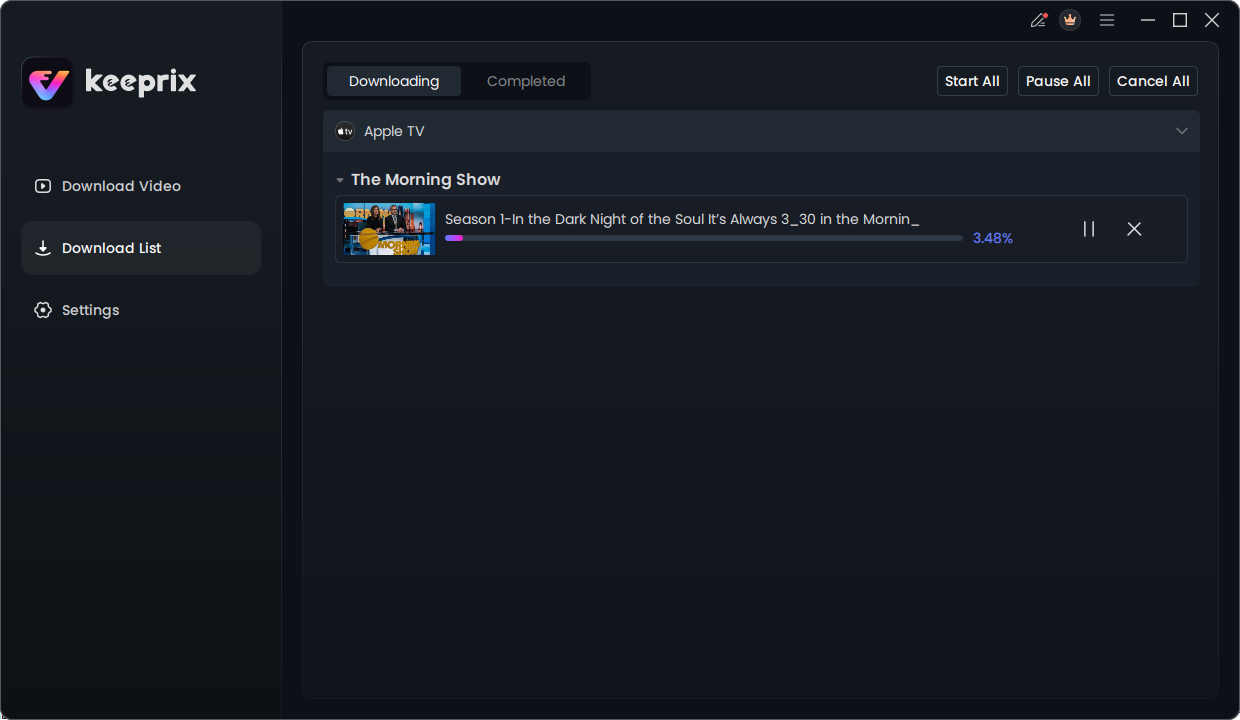
View the Downloading Progress
It will take some minutes to download Apple TV videos and it varies based on the original video size, resolution and network speed. The resolution of the downloaded video is affected by the resolution of the original video. Once the download process is completed, please check the videos in Completed.
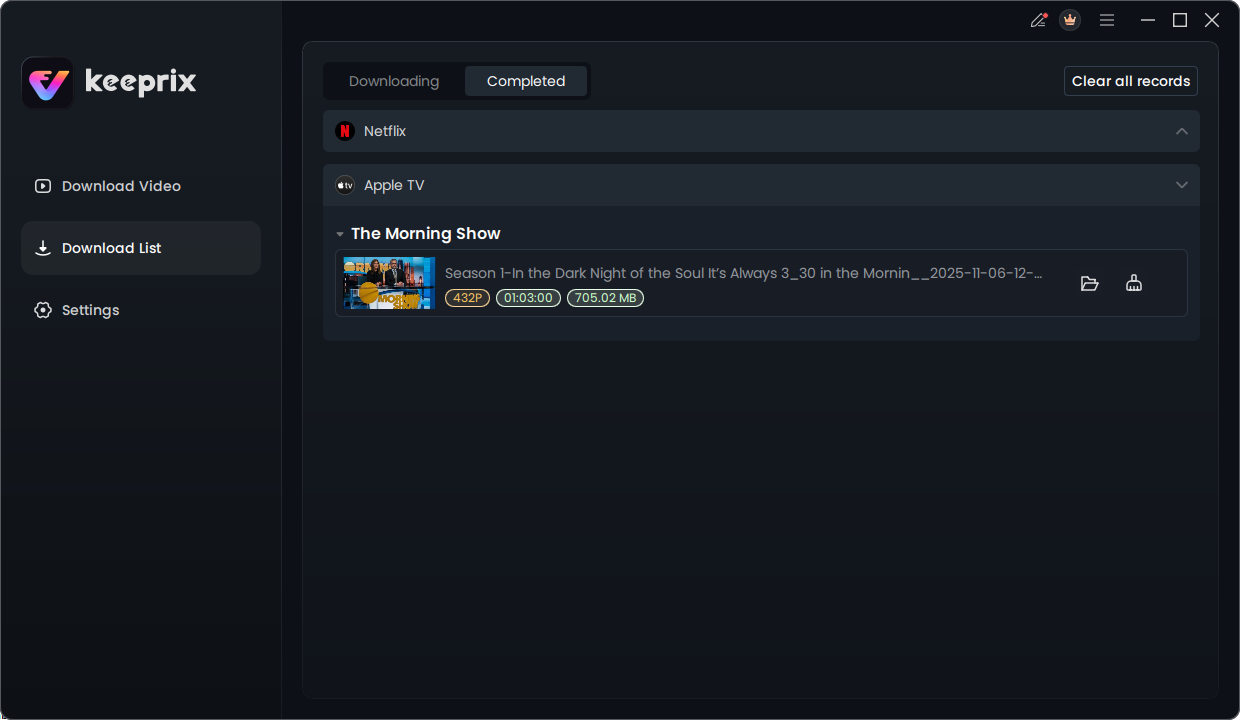
The Download Completed
1. For better management of your download list, please refer to this guide.
2. If you have additional questions, visit our FAQs page for detailed solutions or reach out to our Support Team for further help or personalized assistance.