
Free DownloadWindows 11/10 Free DownloadmacOS 11 and above Get the Mac Version | 100% Clean & Secure
 View Pricing


Download Video
-
Streaming Platforms
-
Social Media


Download YouTube Video
Discover a convenient way to save your favorite YouTube videos with Keeprix Downloader! Our software converts these downloaded videos into commonly used formats. This ensures that you can permanently preserve your favorite content and enjoy it offline at any time, without the need to worry about internet availability. Read on to learn how to make the most of Download YouTube Video function.
Compatibility of Computer System
| Windows OS | Windows 10, 11 |
| macOS | macOS 12 (macOS Monterey) and above |
Differences between Trial Version & Activated Version
We prioritize your satisfaction and want you to have a smooth trial experience. The trial version allows unlimited downloads from social media platforms and 1 video download per streaming platform, including Netflix, Amazon, Disney+, Hulu, Max, and others. This gives you the opportunity to explore the core features before upgrading. For unlimited streaming video downloads, simply upgrade to the activated version to unlock the full download experience.
| Benefits | Trial Version | Activated Version |
| Social Media Video Downloads | Unlimited | Unlimited |
| Streaming Video Downloads | 1 video per platform | Unlimited |
Step 1. Download and Install Keeprix Downloader on Computer.
Before downloading YouTube videos, please click the following button to download and install Keeprix Downloader on your computer. Please ensure your network connection is stable during the process.
Step 2. Choose YouTube Platform.
Open Keeprix Downloader and choose YouTube platform under Social Media option.
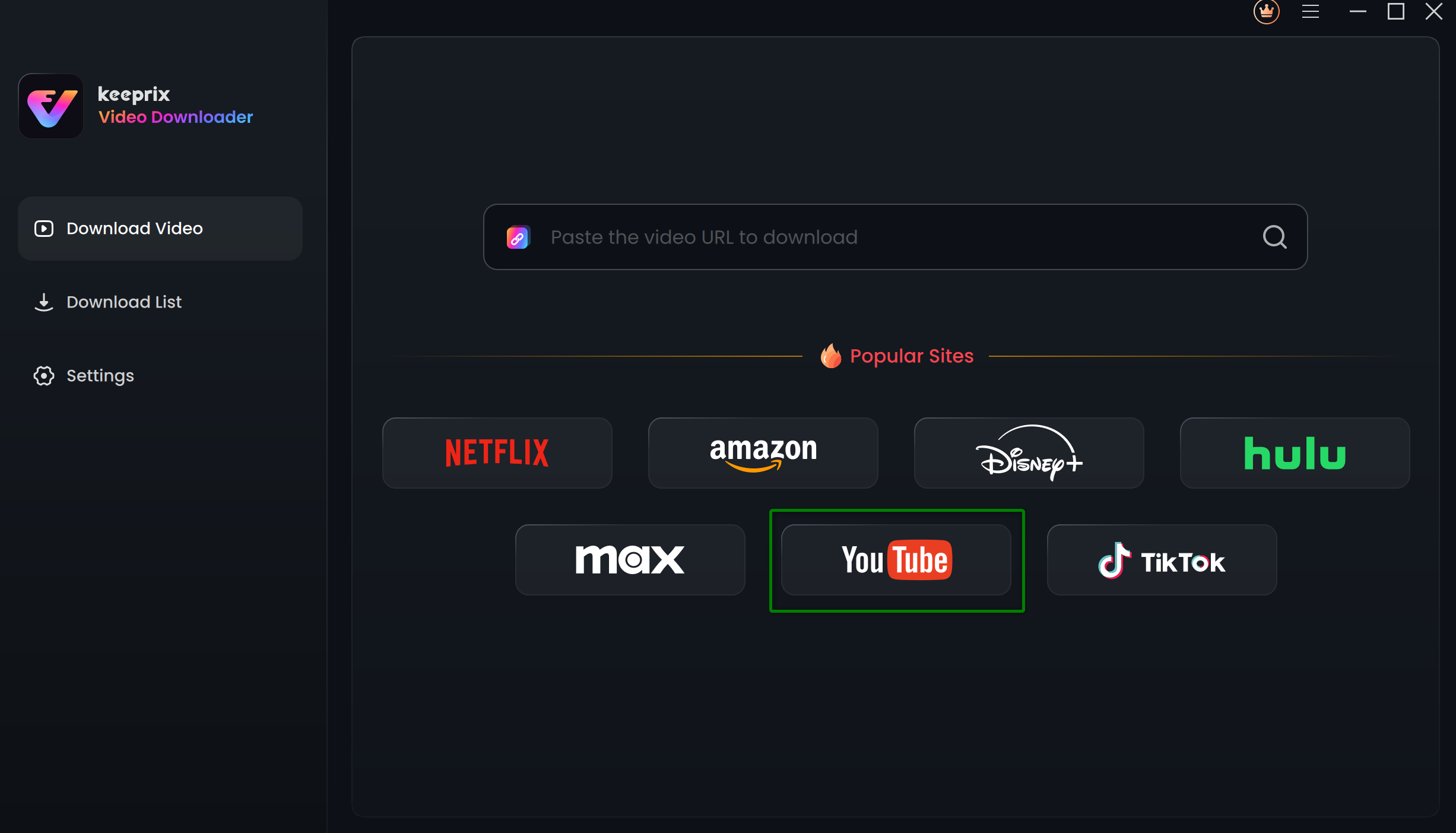
Choose YouTube
Step 3. Choose the Videos You Want to Download.
After browsing the videos in YouTube, choose the videos you want to download and click the Download icon. You can also directly copy and paste the video URL into the search bar. Once the search begins, you'll be redirected to the exact video page.
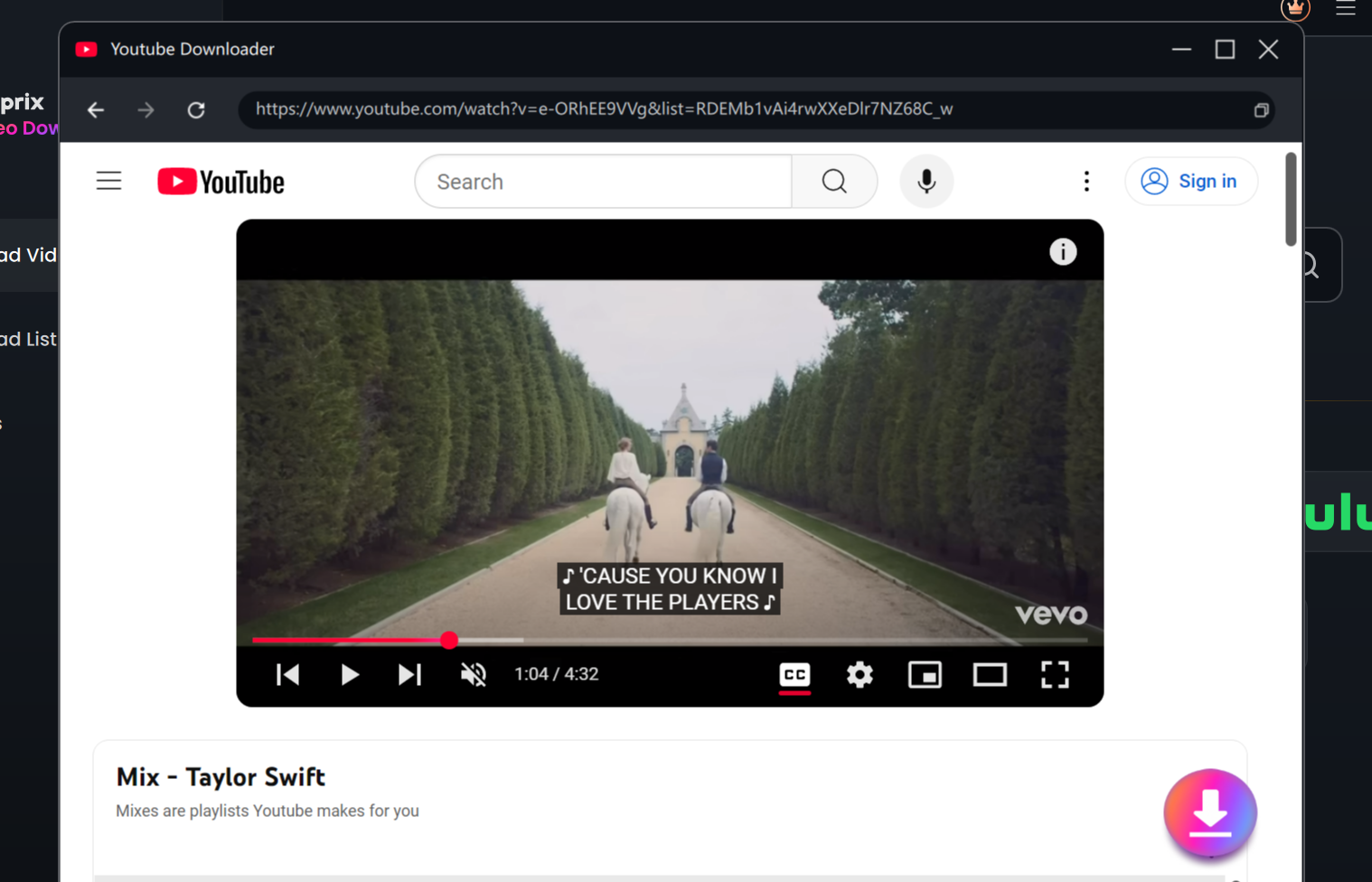
Choose Videos and Click Download Button
Please note that if a video is private and you don't have access rights, it cannot be played and thus cannot be downloaded. In such cases, you need to log in to your platform account.
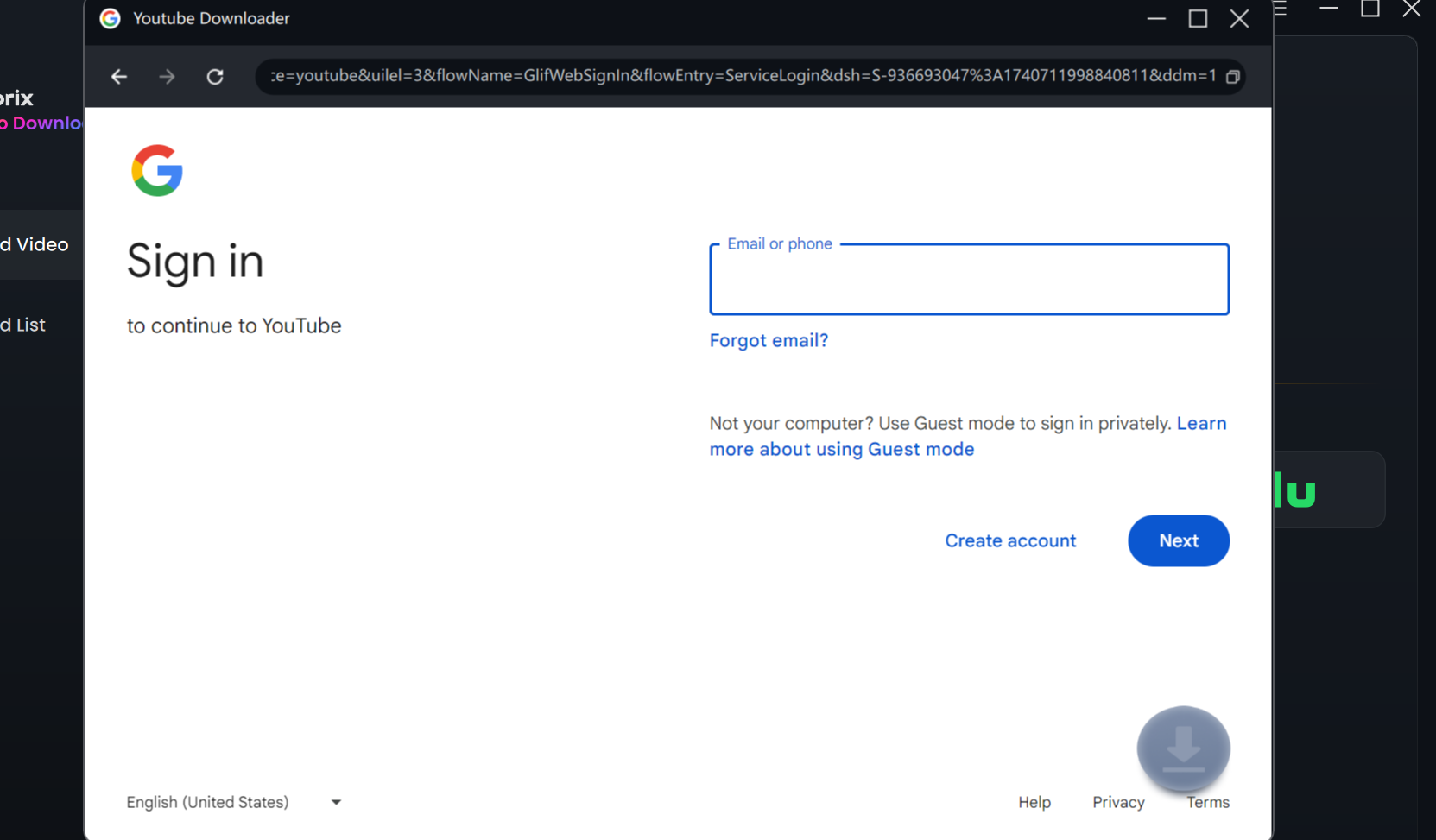
Log in YouTube
Step 4. Finish Download Settings.
When the results appear, navigate to the video playback or details page and click the Download icon. Then, it will pop up a setting window as below. You can customize your download settings by choosing the Resolution, Audio, Subtitle, Subtitle Type, and Output Path. The available resolutions are sourced directly from the original videos. For social media content, the maximum resolution is 4K.
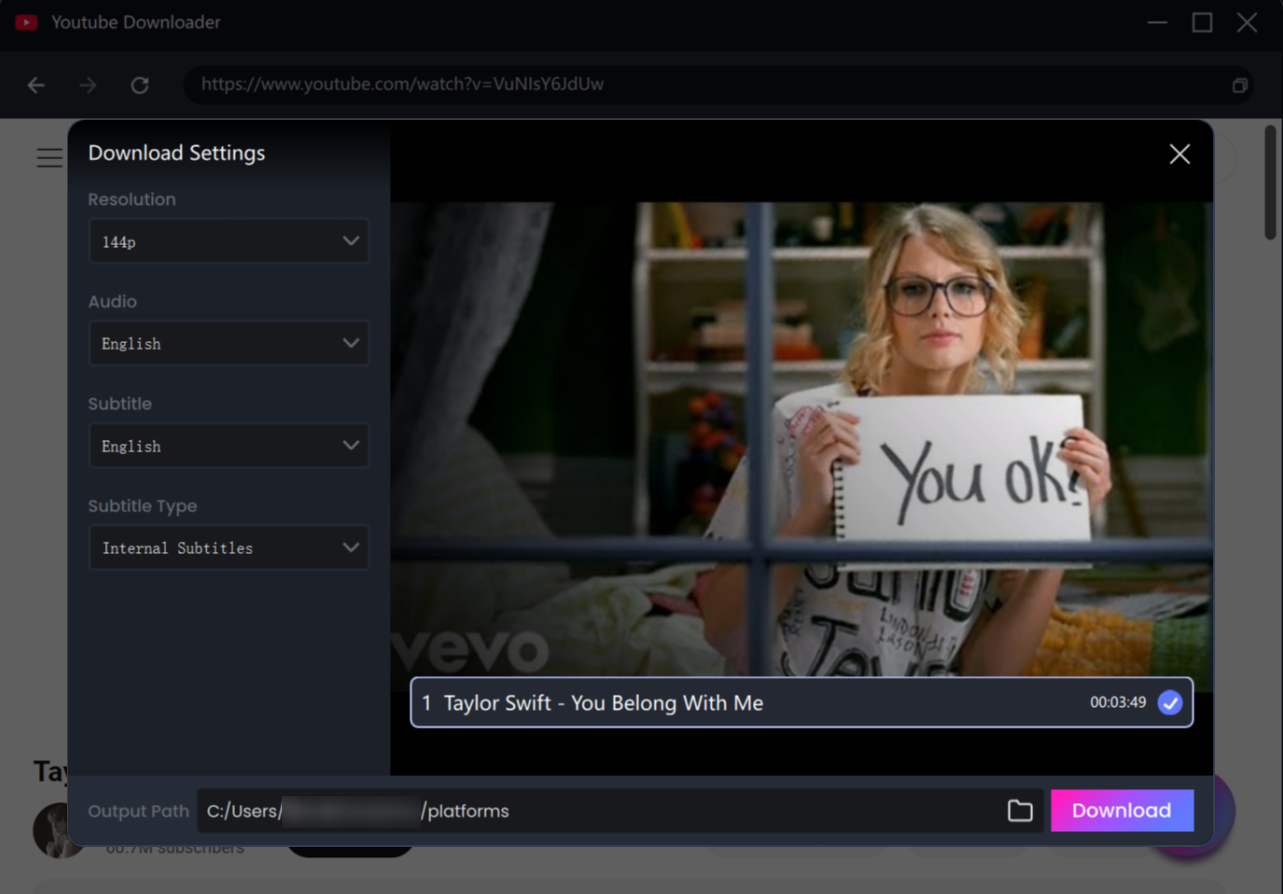
Download Settings
When dealing with video collections, you have the option to select and download all videos in the batch.
Step 5. Download Completed.
Once you click the Download button, the system will spend a few seconds analyzing the videos. Shortly after, the download tasks will appear in the Download List. In this list, you are able to Pause, Refresh, or Delete any download task according to your needs.
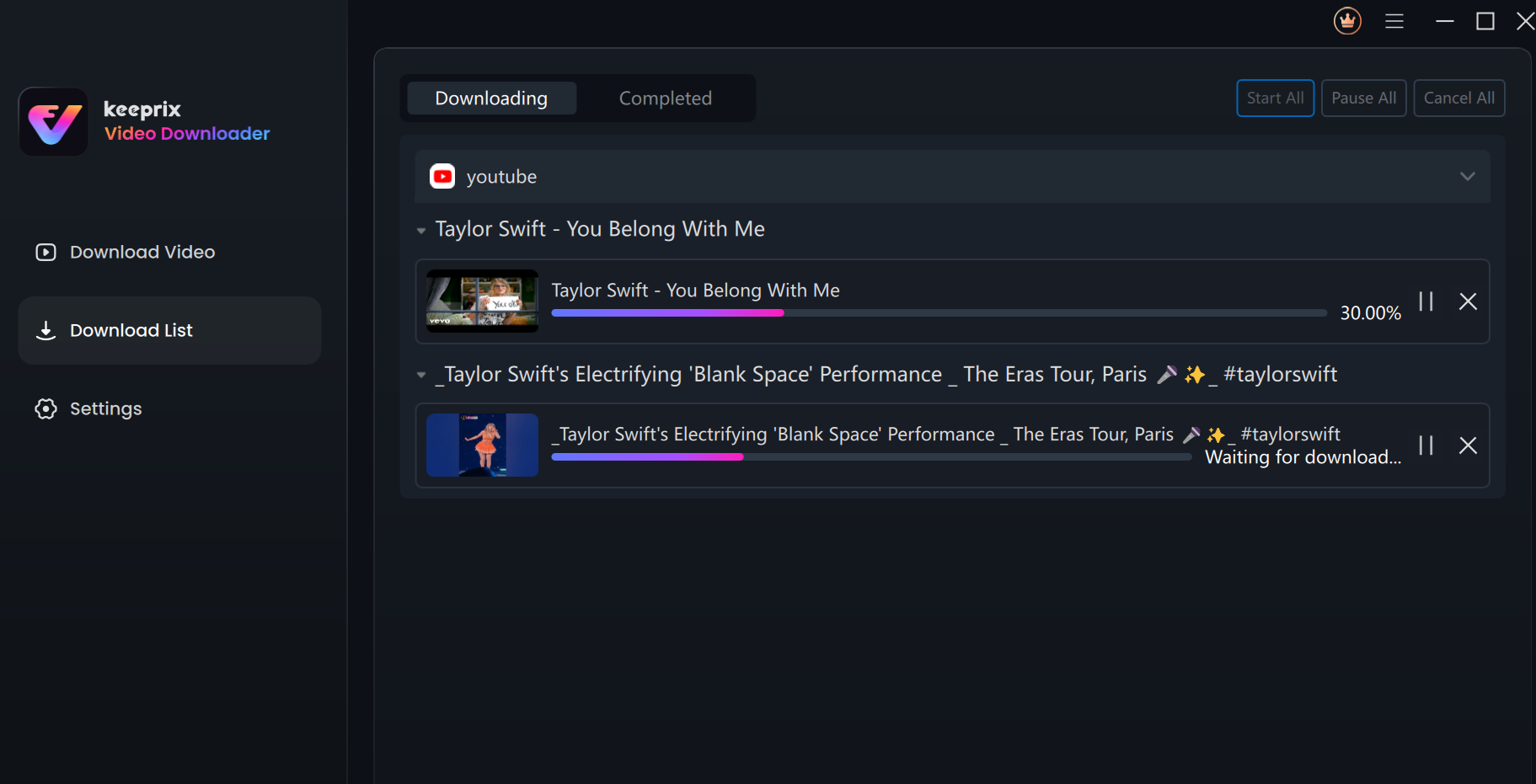
Downloading Interface
Once the download is finished, please head to the Completed section to check your downloaded videos.
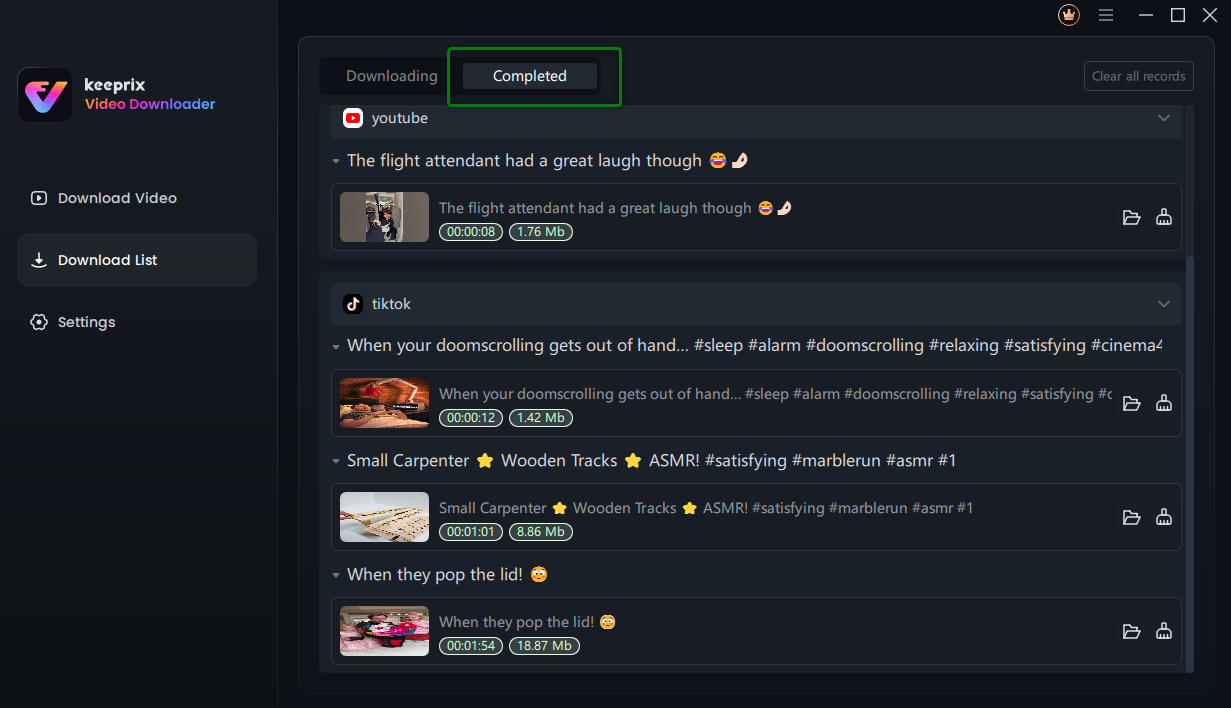
Download Process Completed
If you have additional questions, visit our FAQs page for detailed solutions or reach out to our Support Team for further help or personalized assistance.