
Free DownloadWindows 11/10 Free DownloadmacOS 11 and above Get the Mac Version | 100% Clean & Secure
 View Pricing


Download Video
-
Streaming Platforms
-
Social Media


Settings
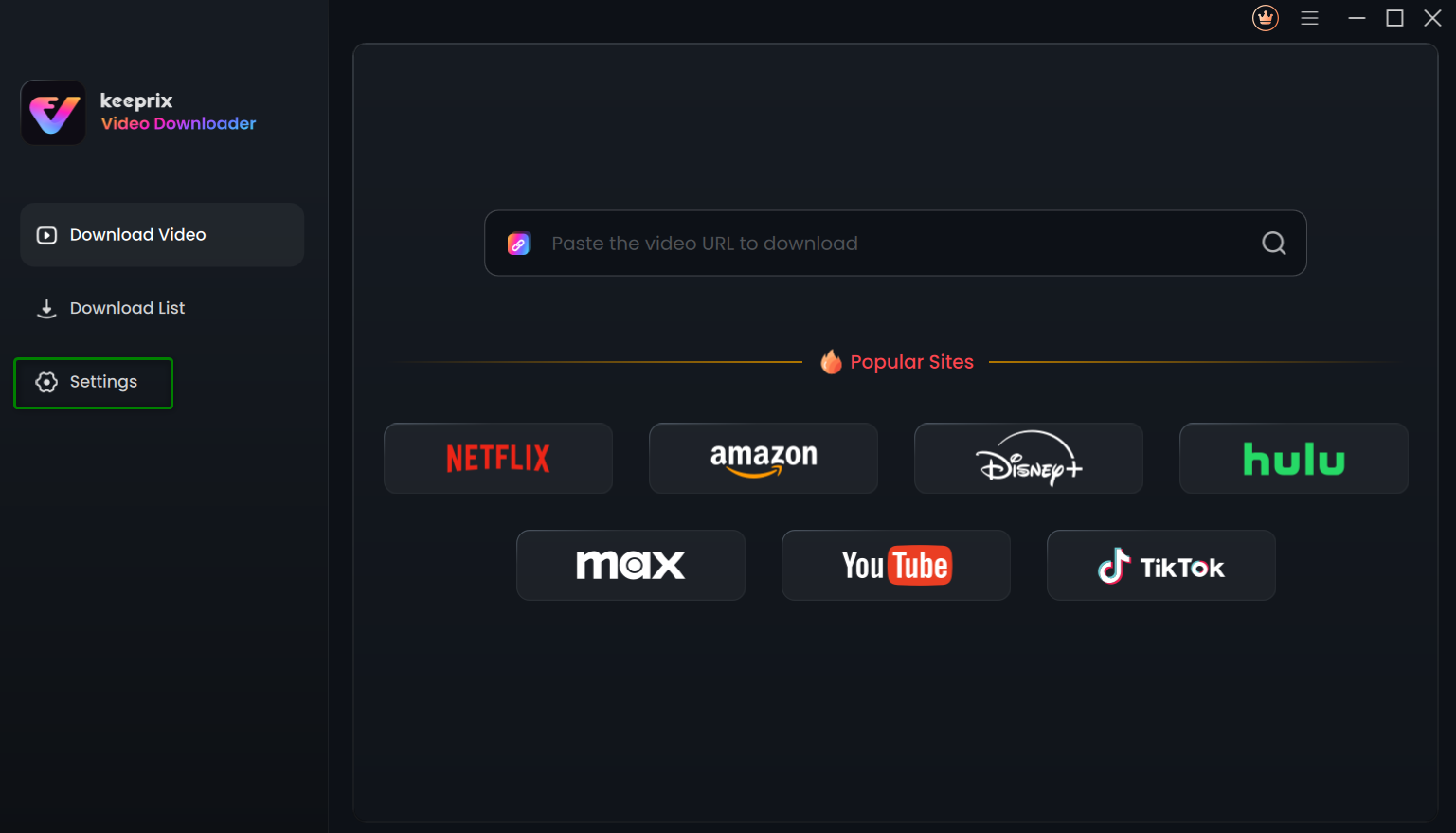
In the Settings section, discover how to navigate and configure Keeprix Downloader for an enhanced streaming experience. Below, we'll guide you through the key features and options available to customize your downloads and streaming preferences.
Computer System Requirements
| Windows OS | Windows 10, 11 |
| macOS | macOS 12 (macOS Monterey) and above |
After launching Keeprix Downloader on your computer, please navigate to the Settings section. Configuring through the Settings feature will be uniformly applied across the entire software.
Navigate the Settings Section
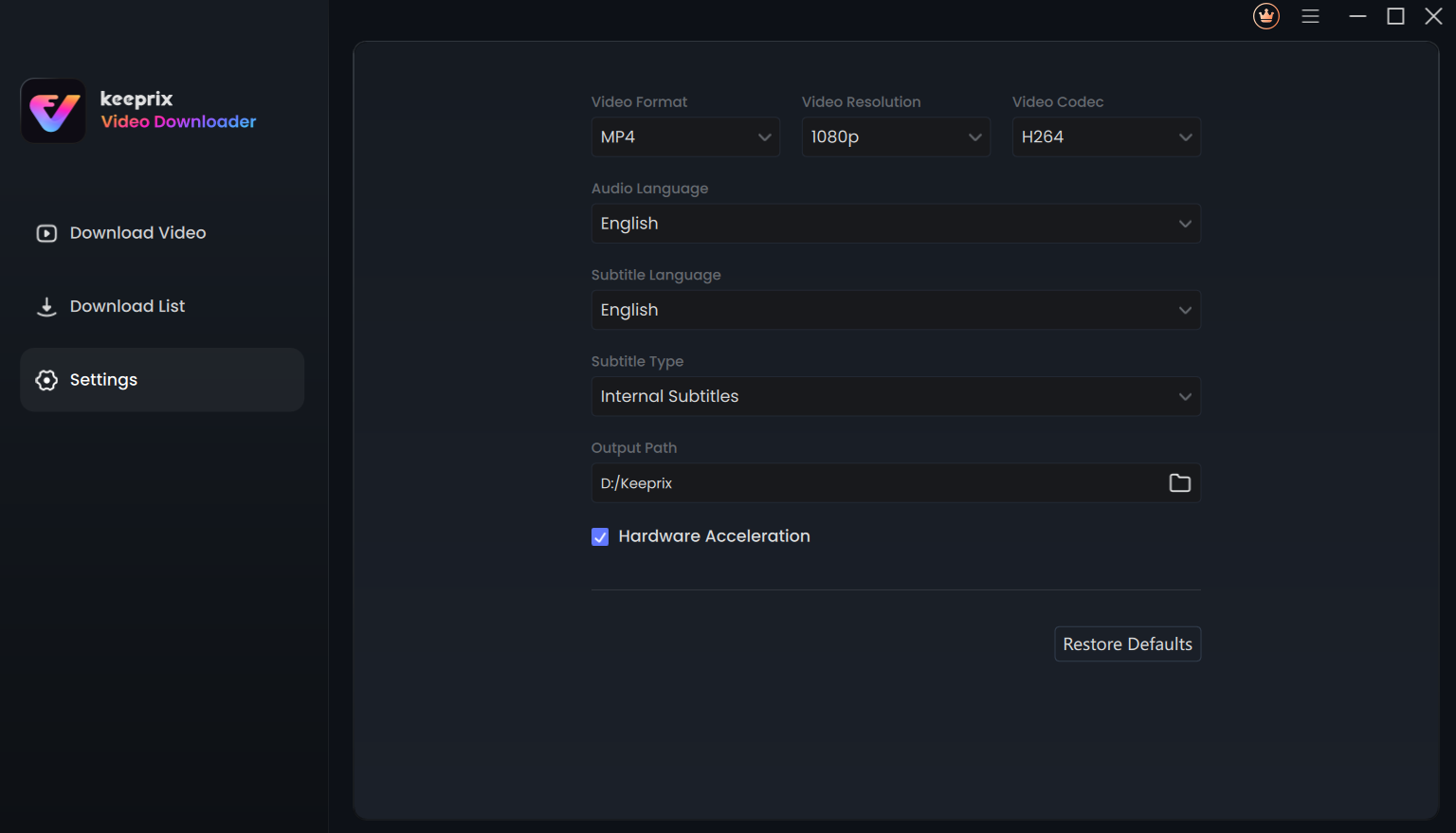
After selecting the Settings option, the following interface will be shown.
Navigate the Settings Section
Below are the available settings:
1. Video Format
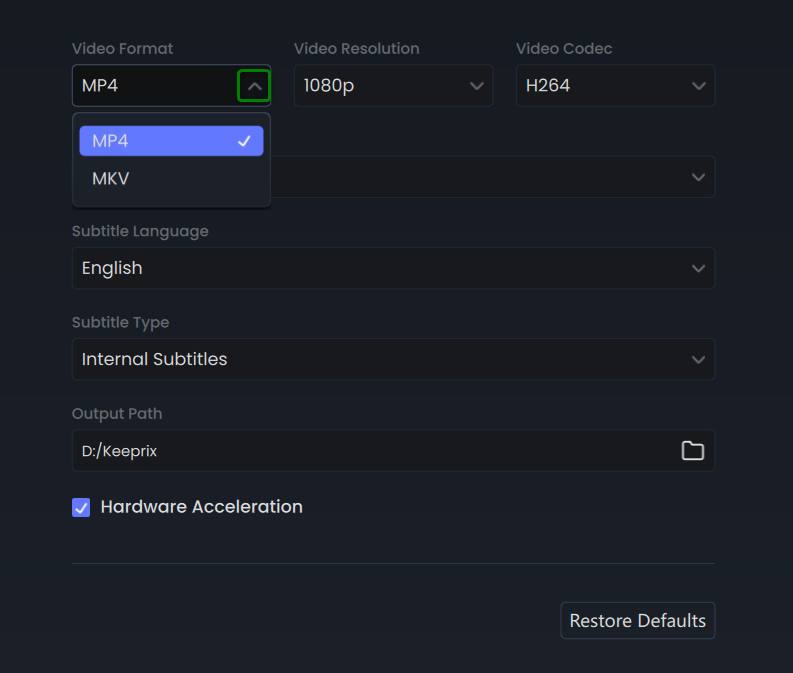
In the settings menu, find the Video Format section. Choose the format that suits your needs based on compatibility and usage by clicking the drop-down button.
Video Format
The available options are as follows:
① MP4: A widely compatible format suitable for most devices and platforms.
② MKV: A versatile format that supports multiple audio and subtitle tracks.
2. Video Resolution
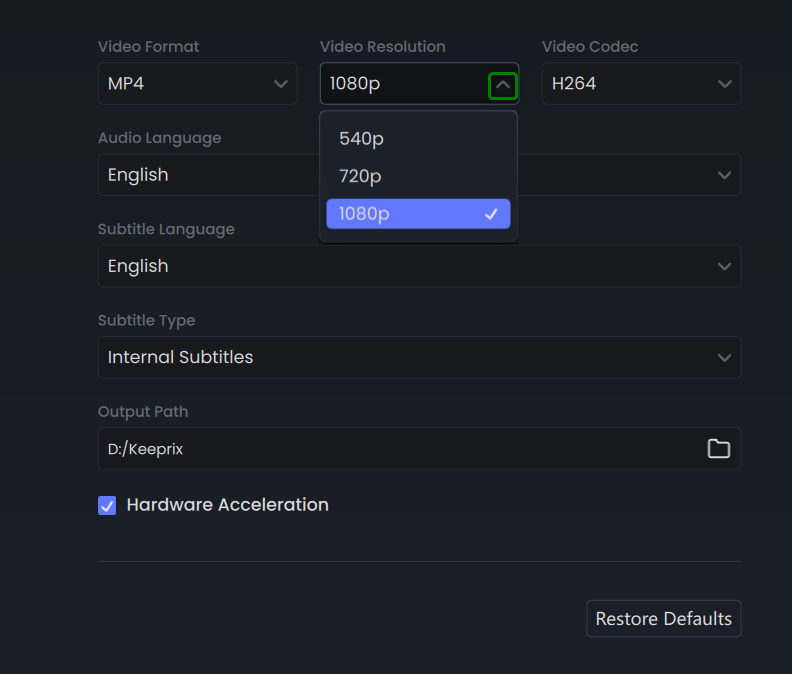
Find the Video Resolution option within the settings. By clicking the drop-down button, you can select the quality and clarity of the video you'll be working with.
Video Resolution
The available resolutions are:
③ 540p: Standard definition, suitable for slower internet connections or smaller screens.
② 720p: High definition, offering a good balance between quality and file size.
① 1080p: Full high definition, providing the best visual experience for larger screens and faster internet connections.
3. Video Codec
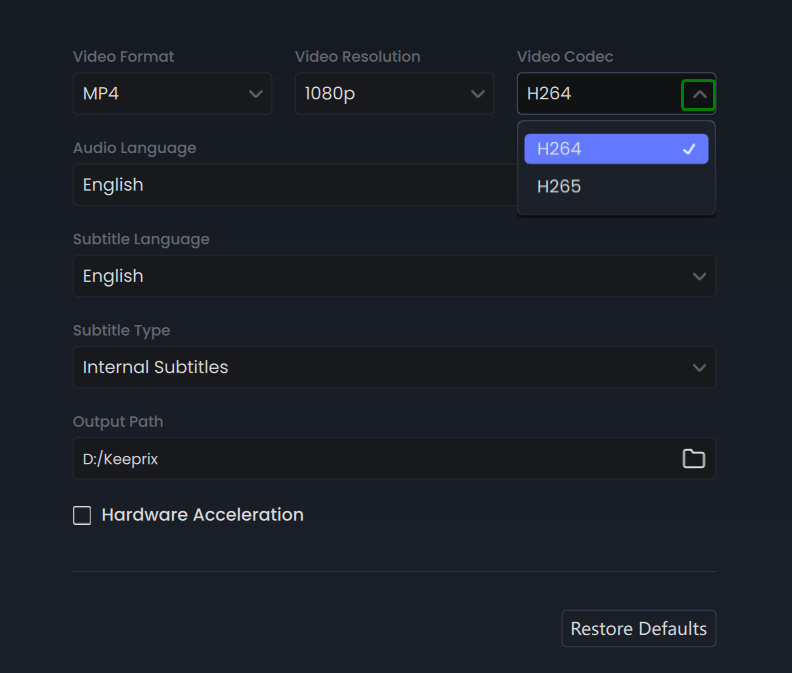
Locate the Video Codec option. You can select the codec based on your computer's compatibility and performance.
Video Codec
The available options are:
① H264: A widely supported codec that offers a good balance between quality and file size.
② H265: A more advanced codec that provides better compression and quality. However, please note that its compatibility is restricted. It might not function ideally on certain older or less capable computer systems.
4. Audio Language
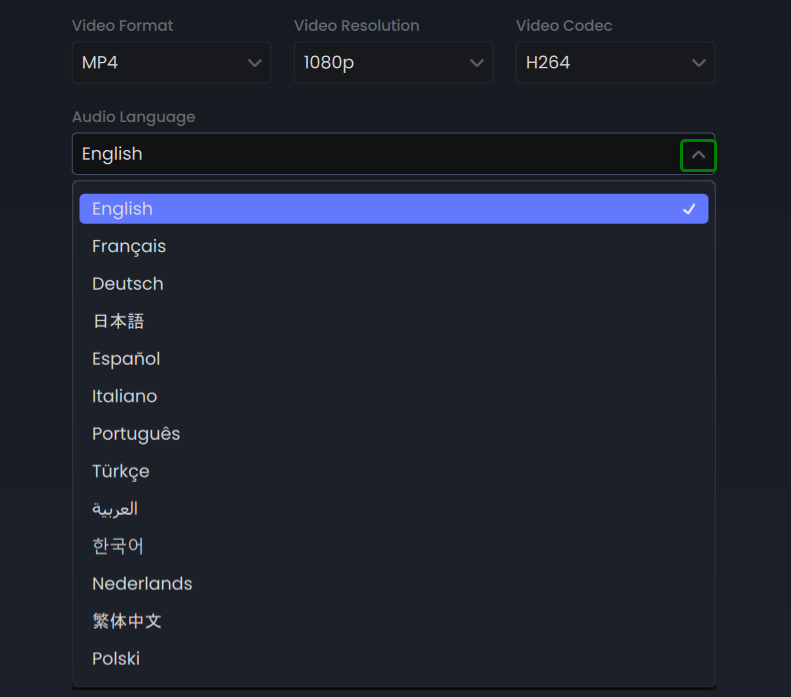
Navigate to the Audio Language section in the settings. Click the drop-down button to select your preferred language for the audio track. Keeprix Downloader supports up to 13 different languages for audio.
Audio Language
5. Subtitle Language
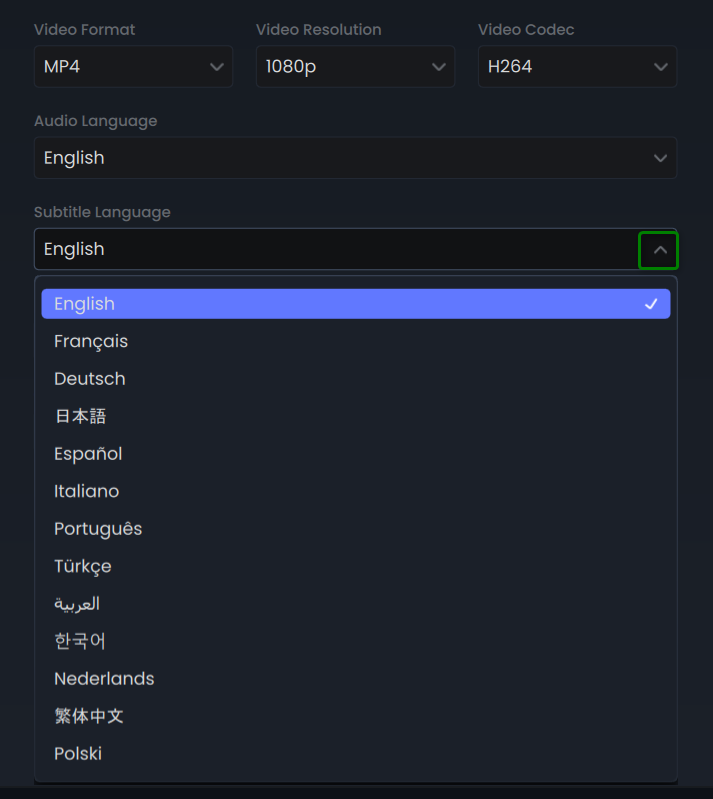
Find the Subtitle Language section and click the drop-down menu to choose your preferred language. With support for 13+ subtitle languages, Keeprix caters to a diverse global audience, ensuring an inclusive viewing experience for everyone.
Subtitle Language
6. Subtitle Type
Find the Subtitle Type option and click the drop-download button.
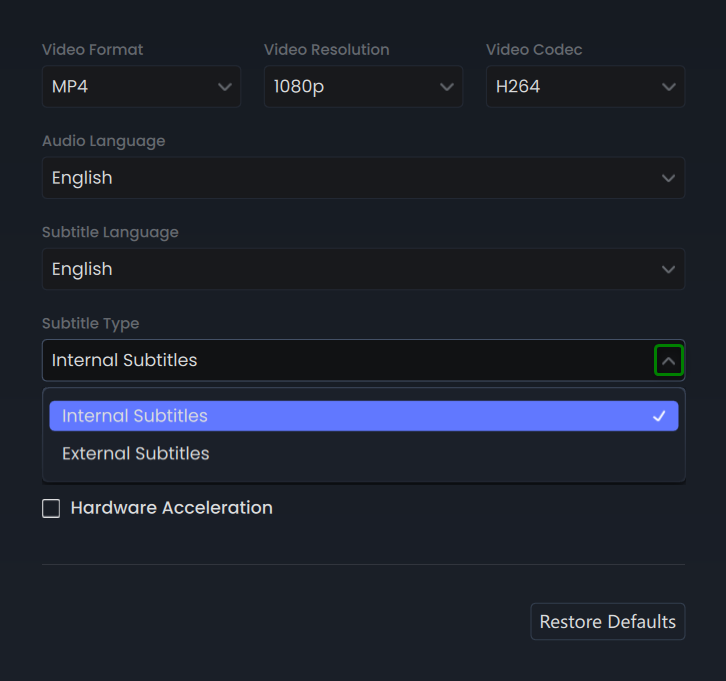
Subtitle Type
Here, you can choose between two different ways of how subtitles are presented:
① Internal Subtitles: With this option, the subtitles are an integral part of the video file.
② External Subtitles: In this case, the subtitles are saved as a separate file.
7. Output Path
Locate the Output Path option and click the File icon to set your preferred directory for saving downloaded or recorded videos. Customize the storage location to suit your needs and keep your files organized effortlessly.
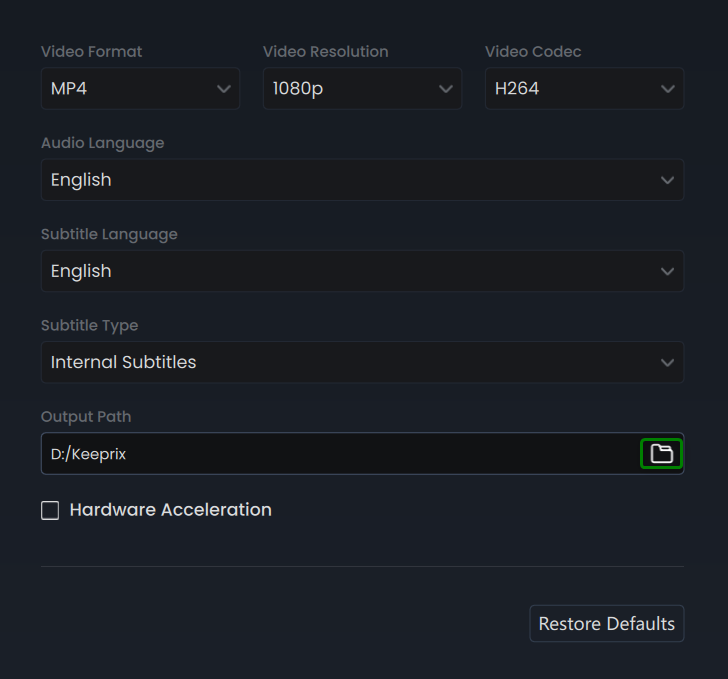
Output Path
8. Hardware Acceleration
Look for the Hardware Acceleration option. You can enable this option to improve the performance of Keeprix Downloader by offloading some of the processing tasks to the device's hardware.
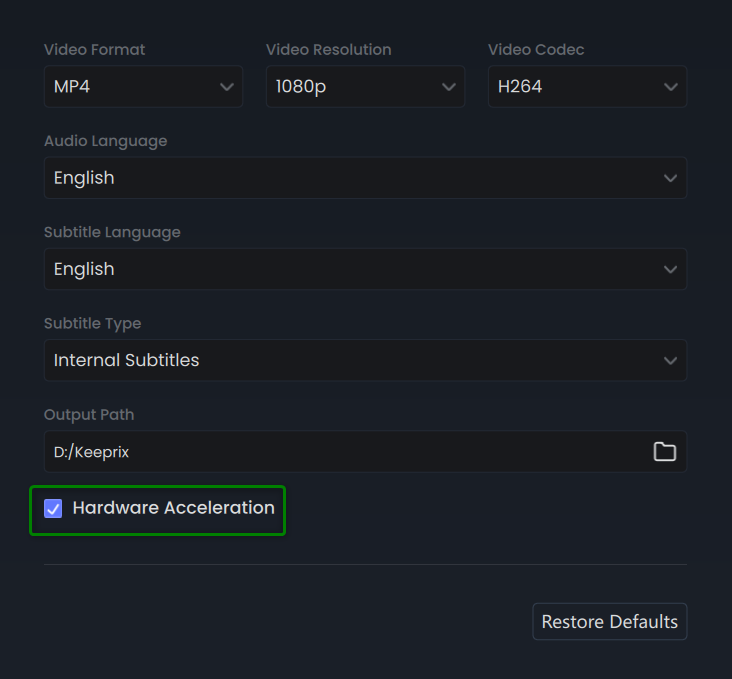
Hardware Acceleration
9. Restore Defaults
Select the Restore Defaults option at the bottom of the interface. Clicking on this button will reset all the settings in Keeprix Downloader to their original default values.
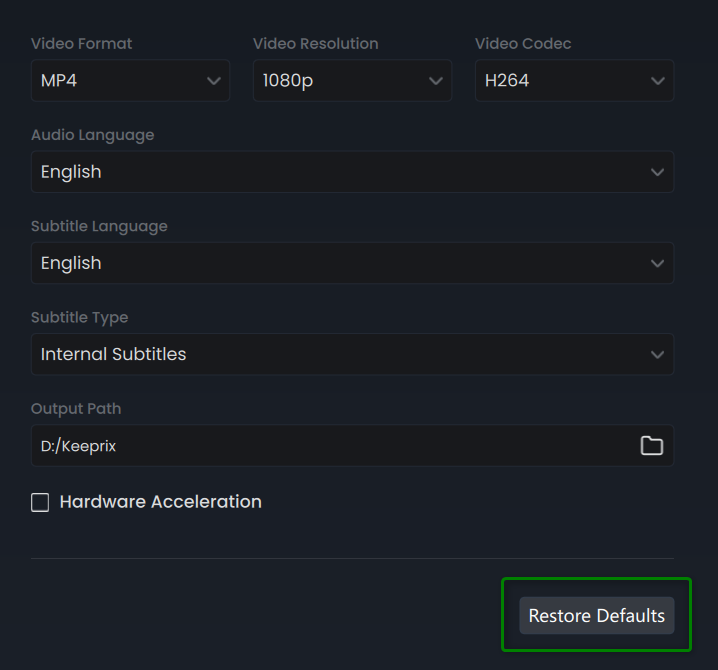
Restore Default
If you have additional questions, visit our FAQs page for detailed solutions or reach out to our Support Team for further help or personalized assistance.