Free DownloadWindows 11/10 Free DownloadmacOS 11 and above Get the Mac Version | 100% Clean & Secure
 View Pricing


Download Video
-
Streaming Platforms
-
Social Media


Download Instagram Video
If you don't want to miss any of the great videos among many Instagram posts, Keeprix Downloader offers an easy way to download Instagram videos to let you review them later. Follow this guide to start downloading Instagram videos.
Compatibility of Computer System
| Windows OS | Windows 10, 11 |
| macOS | macOS 12 (macOS Monterey) and above |
Differences between Trial Version & Activated Version
We prioritize your satisfaction and want you to have a smooth trial experience. The trial version allows unlimited downloads from social media platforms and 1 video download per streaming platform, including Netflix, Amazon, Disney+, Hulu, Max, and others. This gives you the opportunity to explore the core features before upgrading. For unlimited streaming video downloads, simply upgrade to the activated version to unlock the full download experience.
| Benefits | Trial Version | Activated Version |
| Social Media Video Downloads | Unlimited | Unlimited |
| Streaming Video Downloads | 1 video per platform | Unlimited |
Step 1. Download and Install Keeprix Downloader on Computer.
Click the download button below to download Keeprix Downloader to your PC/Mac. Ensure that you have a stable network connection during the download and installation process.
For detailed downloading and installation instructions, please click here to view the download and installation guide.
Step 2. Choose Instagram Platform.
Open Keeprix Downloader and choose Instagram platform under Social Media option.
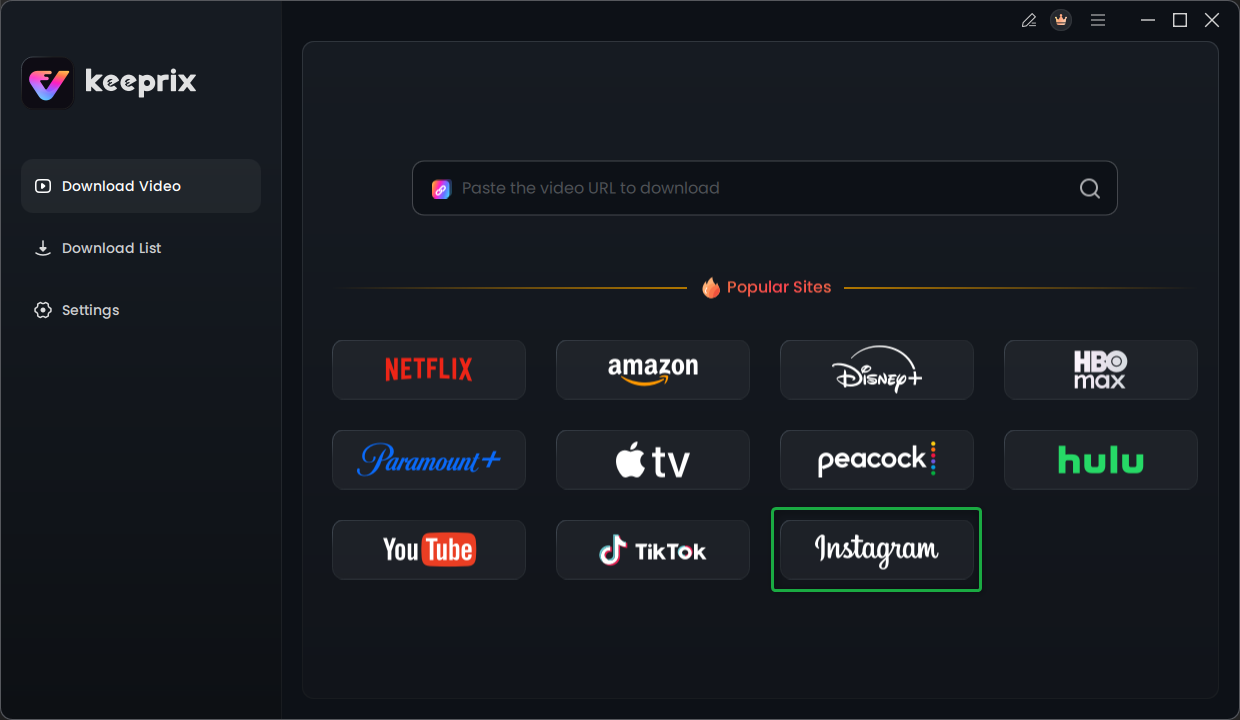
Choose Instagram Platform
Step 3. Choose the Videos You Want to Download.
After browsing the videos on Instagram, choose the videos you want to download and click the Download icon. You can also directly copy and paste the video URL into the search bar. Once the search begins, you'll be redirected to the exact video page.
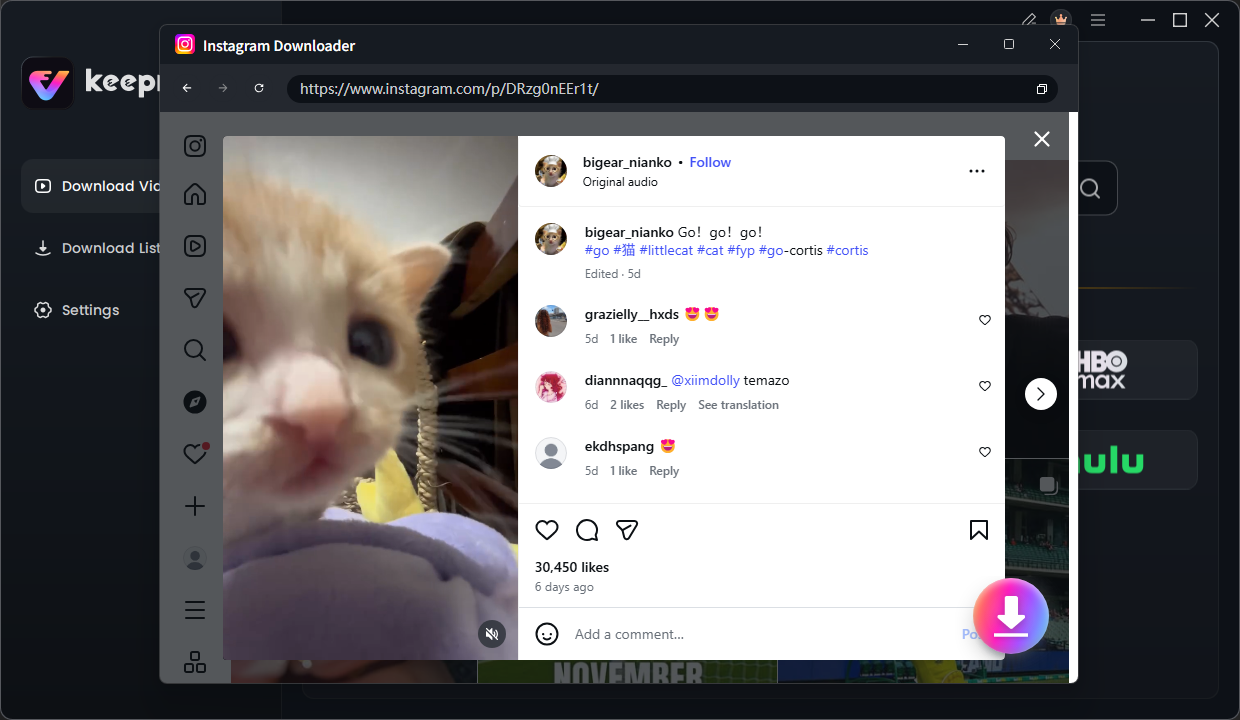
Choose Videos and Click Download Button
1. If you click Instagram from the homepage, you will need to log in to your account. However, if you paste the video link directly, then you don’t need to log in.
2. Please note that if a video is private and you don't have access rights, it cannot be played and thus cannot be downloaded. In such cases, you need to log in to your platform account.
Once you click the Download button, it will analyze the video automatically and it will pop up a setting window as below. In this Download Settings page, you can choose Resolution, Audio, Subtitle, Subtitle Type and Output Path as you like. You can also select all videos in a collection in batches.
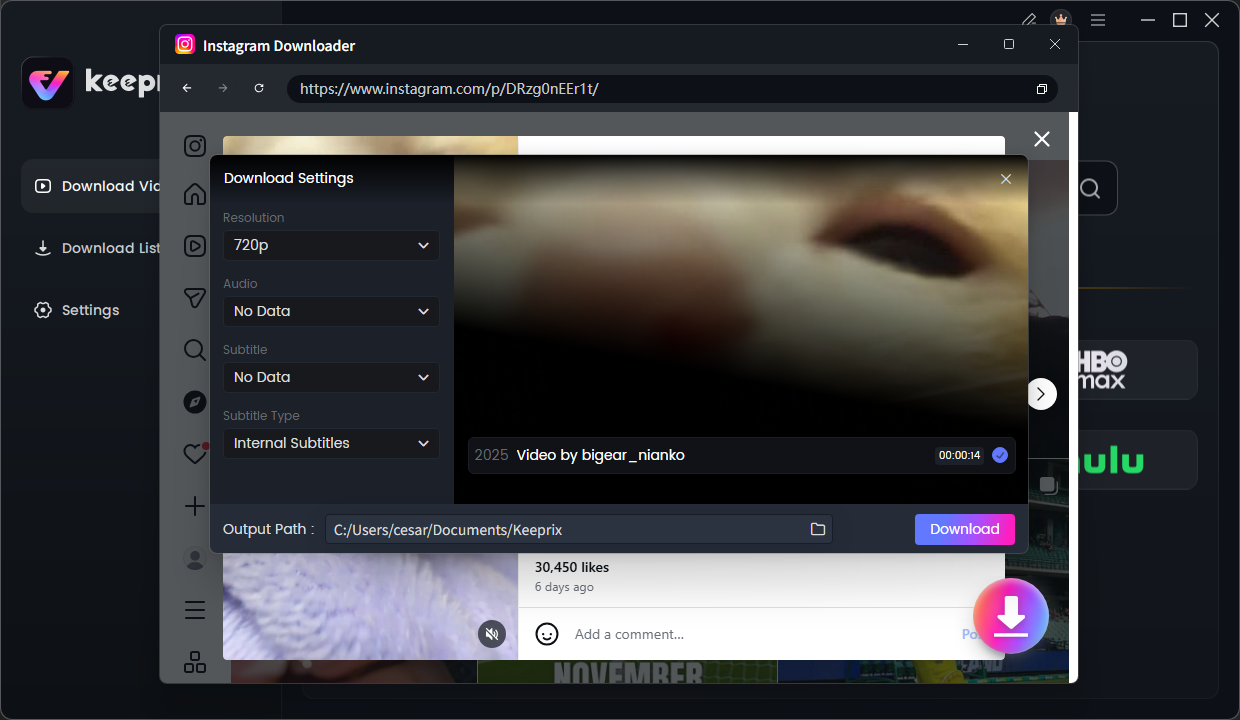
Configure Download Settings
Step 4. Download Completed.
After clicking the Download button, you will see the download task in Download List. You can also Pause, Re-download or Delete the download task.
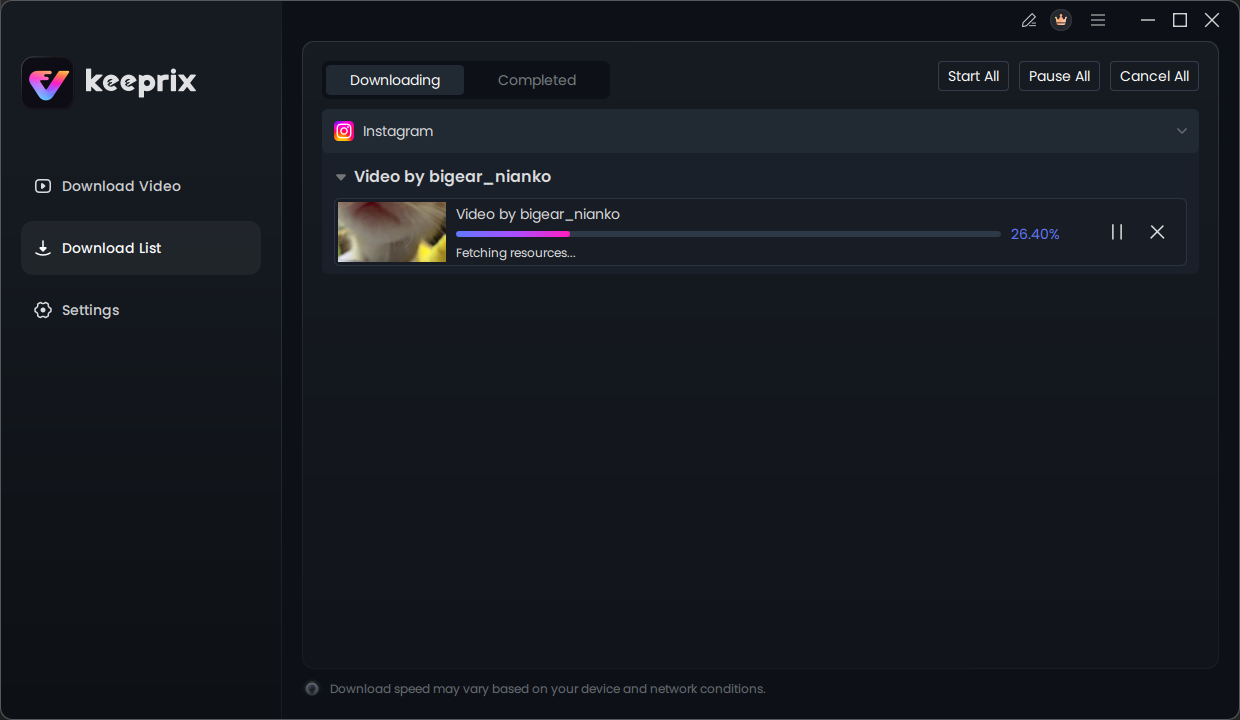
View the Downloading Progress
It will take some minutes to download Instagram videos and it varies based on the original video size, resolution and network speed. The resolution of the downloaded video is affected by the resolution of the original video. Once the download process is completed, please check the videos in Completed.
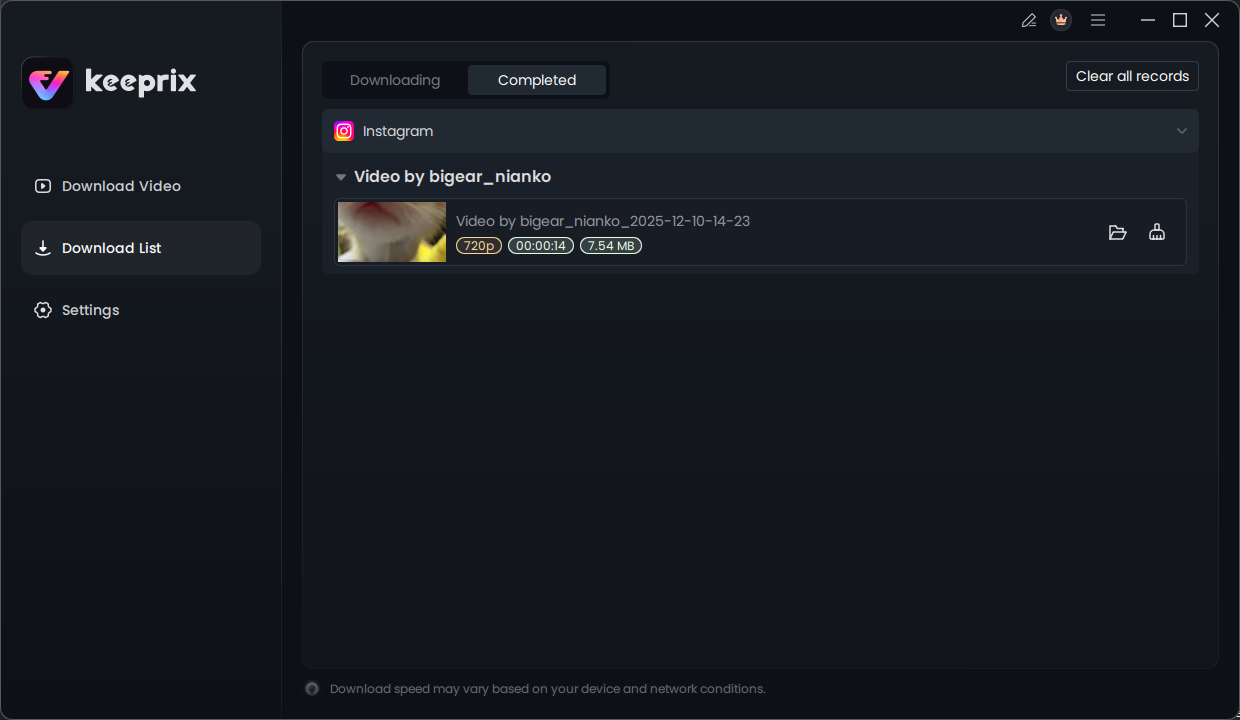
The Download Completed
1. For better management of your download list, please refer to this guide.
2. If you have additional questions, visit our FAQs page for detailed solutions or reach out to our Support Team for further help or personalized assistance.